
Crosslist from Vakoop to WooCommerce — FLUF’s WordPress Plugin for Multi-Marketplace Selling
Crosslist your Vakoop listings to your own WooCommerce store on WordPress — own the customer relationship, escape marketplace fees, and keep inventory in sync with FLUF Connect.
7 days for £1, then from £9/month.



- Crosslist from Vakoop to your own WooCommerce store with FLUF Connect — keep the South African marketplace for discovery while you build a branded shop you control.
- WooCommerce is the free, open-source e-commerce plugin for WordPress, powering over 4 million online stores worldwide. It is your own store, not a marketplace you compete on — no marketplace commission, just your hosting and payment-processor fees.
- Install the FLUF Connect plugin in WordPress. Connect Vakoop, select your products and review them before publishing to WooCommerce.
- Inventory stays aligned through order sync. When an item sells on Vakoop, FLUF Connect can remove the copy on other marketplaces so you do not oversell; your WooCommerce stock is managed natively in WordPress.
- Plans start at £9/month (Starter). Automation is included from Seller upwards. There is no free plan, but every new account gets a 7-day trial for £1.
1. Why sell on both Vakoop and WooCommerce/WordPress?
WooCommerce, the WordPress e-commerce plugin powering a large share of online stores, is the open-source commerce platform that lets you run your own shop with full control of your checkout, your data and your costs. It is completely free to download and install from the WordPress plugin repository, and it powers over four million online stores around the world. Unlike a marketplace, a WooCommerce store on WordPress is yours — there is no marketplace commission, no shared search results, and no platform sitting between you and your buyer.
Vakoop is South Africa’s marketplace for preloved fashion, electronics, sneakers, designer bags and more. It is a brilliant place to be discovered: it is free to list, it brings ready-made buyer traffic, and it handles the trust and discovery problems that a brand-new independent store struggles with on day one. The catch is the same as every marketplace — you play by Vakoop’s rules, you compete in shared listings, and the customer relationship belongs to the platform, not to you.
The smartest play for a serious South African reseller is to do both. Keep Vakoop for reach and discovery, and run a WooCommerce store on WordPress as the home base you actually own. Your WordPress store carries your branding, captures your customers’ details for repeat sales and email marketing, and keeps a far larger slice of every sale because WooCommerce charges no marketplace fee — you pay only your hosting and your payment-processor’s transaction fee (for example via WooPayments or Stripe). Crosslisting from Vakoop to WooCommerce with FLUF Connect means you list once and sell everywhere, without copying photos and descriptions by hand or risking overselling the same one-off item twice.
| Consideration | Vakoop (marketplace) | WooCommerce store (your own, on WordPress) |
|---|---|---|
| Who owns the customer | The marketplace | You |
| Commission / selling fee | Marketplace terms apply | None to WooCommerce — you pay only payment-processor fees |
| Branding | Within Vakoop’s template | Fully your own design and domain |
| Discovery / built-in traffic | Strong — ready buyer base in South Africa | You drive your own traffic (SEO, social, ads) |
| Cost to start listing | Free to list | WooCommerce plugin is free; you pay hosting + domain |
| Customer data & email list | Held by the platform | Yours to keep and remarket to |
| Control of checkout | Marketplace checkout | Full control via WordPress/WooCommerce |
This is the heart of the strategy: Vakoop is rented reach, WooCommerce is owned territory. FLUF Connect is the bridge between them.
Renting reach versus owning your store
It is worth being honest about what a marketplace gives you. When you list on Vakoop you are renting access to an audience that already exists — genuinely valuable, since building buyer traffic from scratch is the hardest part of running any online shop. But everything you build there sits on rented ground: the platform sets the rules, owns the customer relationship, and can change its terms whenever it likes.
A WooCommerce store on WordPress flips that relationship. Because WooCommerce is the free, open-source e-commerce plugin for WordPress, the software is yours to run on hosting you choose, with a checkout you control. Nobody can suspend your storefront on a whim, raise a commission overnight, or bury you beneath a competitor’s listing. Your customers’ email addresses are yours, so you can market to past buyers and turn a one-time shopper into a repeat customer — something no marketplace lets you do freely. Over time that owned audience compounds, while marketplace reach has to be re-earned with every listing.
The reason to keep both is that they cover each other’s weaknesses: Vakoop brings discovery, your WordPress store builds equity. As your own-brand WooCommerce store grows through search, social and word of mouth, more of your margin moves to the channel you own — and crosslisting with FLUF Connect lets you ride that curve without doing the work twice.
2. How it works — crosslist from Vakoop to WooCommerce with FLUF Connect
FLUF Connect is itself a WordPress/WooCommerce plugin. That is an important difference from a typical “marketplace integration”: when you crosslist to WooCommerce, your items are created as genuine products inside your own WooCommerce store, living in your WordPress database under your control. There is no third-party storefront in the middle. Here is the full path from a fresh WordPress site to crosslisted products.
- Install WordPress and WooCommerce. You need a self-hosted WordPress site with the free WooCommerce plugin installed and activated. WooCommerce is available directly from the WordPress plugin repository at no cost — this is the open-source foundation your store runs on.
- Install the FLUF Connect plugin from your WordPress admin. Log in to your WordPress dashboard, go to Plugins → Add New, install and activate FLUF Connect. Because FLUF Connect runs inside WordPress, your WooCommerce store is connected automatically — it is the plugin’s host environment, so there is nothing extra to authorise for WooCommerce itself.
- Connect Vakoop. Follow Vakoop’s authorisation prompts from the FLUF Connect dashboard.
- Choose your channels. Pick which channels you want to crosslist between. For this workflow that is Vakoop as the source and your WooCommerce store as the destination — and you can add others such as eBay, Depop, Etsy, Vinted, Shopify or Yaga at the same time.
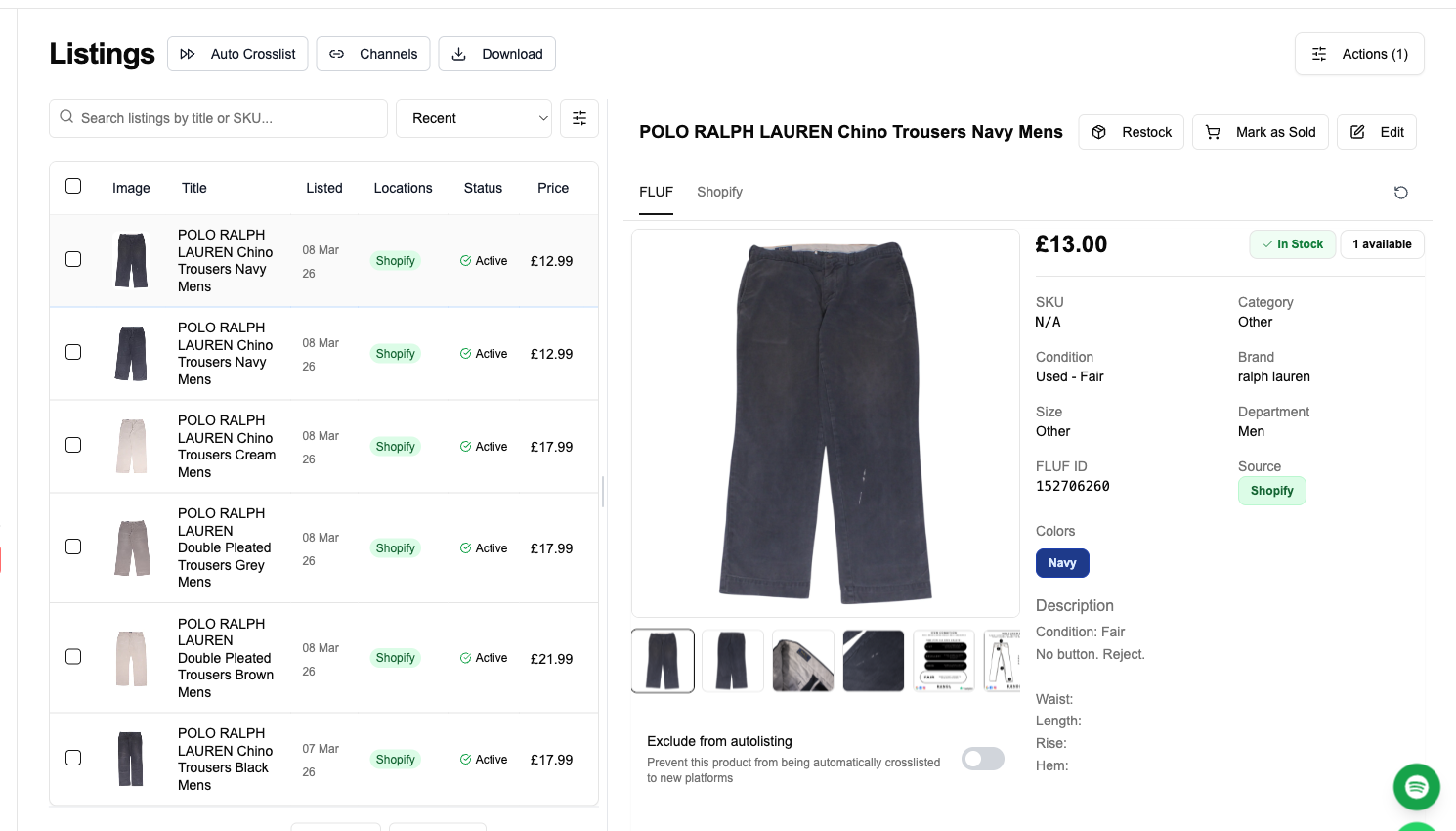
- Select the Vakoop listings to push. FLUF Connect reads your Vakoop wardrobe and shows your items in one dashboard. Select a single item or bulk-select many.
- Crosslist to WooCommerce. FLUF Connect maps each Vakoop listing’s photos, title, description, price and category onto WooCommerce product fields and creates the products in your WordPress store. Within seconds the items appear in Products in your WooCommerce admin, ready to publish on your branded storefront.
- Sell everywhere, sync automatically. From then on FLUF Connect watches for sales. When something sells on Vakoop it can remove the copies on other marketplaces, and order sync keeps your available quantities aligned across every connected channel.
Because the destination is your own store rather than a marketplace, there is no “relisting” step and no “offers” mechanism to manage on the WooCommerce side — your products simply stay live in WordPress until you sell or remove them. For more on connecting multiple platforms, see our guide to selling on multiple platforms.
A closer look at the WordPress admin install path
If you have never run a self-hosted site before, the WordPress admin is the control panel for your whole store, reached at yourdomain.com/wp-admin. Everything below happens there, in your own dashboard, and nothing requires touching code.
First, with WordPress installed on your hosting, you add WooCommerce: go to Plugins → Add New, search for WooCommerce, then install and activate. WooCommerce runs a short setup wizard asking for your store’s address, currency and product types. Because WooCommerce is open-source and free from the WordPress plugin repository, there is no licence to buy; your only costs are hosting and a domain.
Next you add FLUF Connect the same way. The key point is that FLUF Connect installs into the same WordPress that runs your store, so it can read and write WooCommerce products directly — there is no separate “connect my WooCommerce” handshake, because the plugin is already inside the store it publishes to. Once active, it adds its dashboard to your WordPress admin, where you connect Vakoop and start crosslisting.
3. Field & category mapping
When FLUF Connect crosslists a Vakoop item to WooCommerce, it maps the source listing’s data onto the corresponding WooCommerce product fields in your WordPress store. The table below shows how the main fields and a few representative categories translate.
Legend: ✅ Direct mapping · ⚡ Mapped automatically with smart matching · ⚠️ Mapped with a sensible default you may want to review · ❌ Not applicable / not transferred
| Vakoop listing field | WooCommerce product field | Mapping | Notes |
|---|---|---|---|
| Title | Product name | ✅ | Carried across directly. |
| Description | Product description | ✅ | Full text transferred into the WooCommerce editor. |
| Photos | Product gallery images | ✅ | Images uploaded to your WordPress media library and attached. |
| Price (ZAR) | Regular price | ✅ | Carried across; you control your own pricing in WooCommerce. |
| Category | Product category | ⚡ | Matched to your existing WooCommerce category taxonomy in WordPress. |
| Brand | Brand attribute / tag | ⚡ | Mapped to a WooCommerce attribute or tag where available. |
| Size / condition | Product attributes | ⚡ | Added as WooCommerce attributes shoppers can see and filter. |
| Quantity | Stock quantity | ⚠️ | Resale items are usually single units; defaults to one — review for any multi-unit lines. |
| SKU / reference | Product SKU | ⚡ | Keeps each item uniquely identifiable so order sync matches a sale to the right WooCommerce product. |
| Vakoop offers / negotiation | — | ❌ | Not applicable on your own WooCommerce store. |
A few mappings reward a closer look. Photos are uploaded into your WordPress media library and attached to the gallery, so your store keeps its own copies and never depends on the marketplace for images. Descriptions land in the WooCommerce product editor as full, editable text. The price comes across in ZAR as the regular price, and from then your WooCommerce pricing is independent — you can run your own sales in WordPress without affecting Vakoop.
Brand, size and condition reward a good attribute setup. In WooCommerce, attributes power the layered filters shoppers use to narrow a catalogue, and FLUF Connect maps Vakoop’s brand and size data onto WooCommerce attributes so those filters work out of the box. The field worth a glance is quantity: because resale stock is overwhelmingly one-of-a-kind it defaults to a single unit, which is almost always correct — but review it if you stock multiples.
Three worked category examples:
| Vakoop category | Mapped WooCommerce category | Mapping |
|---|---|---|
| Preloved fashion → Women’s dresses | Clothing → Dresses | ⚡ |
| Sneakers | Footwear → Trainers / Sneakers | ⚡ |
| Designer bags | Accessories → Bags & Handbags | ⚡ |
| Electronics | Electronics | ⚡ |
Because the WooCommerce category structure is entirely yours, you can shape it however suits your brand in the WordPress admin, and FLUF Connect will match incoming Vakoop items to it. You stay in full control of how products are organised in your own store.
Setting up your WooCommerce categories first
Smart matching works best when it has a sensible structure to match into, so set up your WooCommerce categories before your first big crosslist. In the WordPress admin you create and arrange categories under Products → Categories. A clean, shallow hierarchy — groups like Clothing, Footwear, Accessories and Electronics, each with a few sub-categories — is easier for shoppers to browse and easier for FLUF Connect to map onto than a sprawling tree.
Think of your categories as the navigation of your own brand, not a copy of Vakoop’s taxonomy. When FLUF Connect crosslists an item it matches the Vakoop category to the closest fit in your WordPress taxonomy, so the better organised your store is up front, the less reviewing you do afterwards. You can refine categories later in WordPress without re-doing any crosslisting.
4. Inventory sync — what stays in sync
The whole point of crosslisting one-off resale items is to never sell the same thing twice. FLUF Connect’s inventory sync is built for exactly this. It watches order activity on Vakoop and on your WooCommerce store and keeps your availability consistent across every connected channel.
| What syncs | Vakoop | WooCommerce (your store) |
|---|---|---|
| Order detection (FLUF Connect spots the sale) | ✅ order sync | ✅ order sync |
| Auto-remove the copy elsewhere when sold | ✅ mark-as-sold | ❌ — stock managed natively in WooCommerce |
| Stock quantity kept aligned across channels | ✅ | ✅ (decremented by WordPress/WooCommerce itself) |
| Relisting | ❌ not supported | ❌ n/a — it’s your own store; products stay up |
| Offers / negotiation | ❌ not supported | ❌ n/a |
A note on how WooCommerce differs from a marketplace here. On a marketplace like Vakoop, when an item sells elsewhere FLUF Connect can “mark it as sold” — that is, actively remove the marketplace copy. WooCommerce is your native store, so its stock is managed directly inside WordPress/WooCommerce. When a sale happens, WooCommerce decrements stock itself, and FLUF Connect reflects sales between channels through order sync so the available quantity stays accurate everywhere. The effect is the same — no overselling — but the mechanism is order sync, not “marking a copy sold”.
If a buyer grabs your only vintage jacket on Vakoop, FLUF Connect detects the Vakoop sale and removes the listing from your other marketplaces, while your WooCommerce stock stays consistent through order sync — so a second buyer can’t purchase an item you no longer have.
How the order-sync workflow runs day to day
When an item sells on Vakoop, FLUF Connect updates availability on connected listings and your WooCommerce store. Allow time for changes to complete and check listing status while a sale is processing.
When an item sells on your WooCommerce store, the flow respects how WordPress works. WooCommerce decrements its own stock natively the instant a customer checks out — core WordPress e-commerce behaviour that FLUF Connect does not override. FLUF Connect then reflects that sale across your other connected channels through order sync, bringing the Vakoop copy into line so you avoid selling the same one-off twice. On a marketplace the mechanism is “mark the copy sold”; on your own WooCommerce store the source of truth is WordPress itself, and FLUF Connect aligns the rest to it.
This is why the integration is deliberately quiet on relisting and offers for the WooCommerce side. Those concepts belong to marketplaces — listings that expire, buyers who haggle. Your WordPress store has neither: a product you publish stays live until it sells, and order sync is the only moving part you need.
5. Before & after workflow
Before FLUF Connect
- List an item on Vakoop. Then, to build your own store, re-create the same product by hand in WooCommerce — re-uploading every photo, re-typing the title and description, re-entering the price into WordPress.
- When it sells on one channel, scramble to pull it down everywhere else manually before someone else buys it.
- Spend evenings reconciling what is still available where, and occasionally oversell a one-off item and have to apologise and refund.
After FLUF Connect
- List once on Vakoop, select it in the FLUF Connect dashboard, and crosslist to your WooCommerce store in seconds — photos, description and price mapped automatically into WordPress.
- When it sells anywhere, FLUF Connect removes the marketplace copies and keeps your WooCommerce stock aligned through order sync. No manual takedowns.
- Spend your time sourcing and growing your own-brand WordPress store, not copy-pasting listings.
6. Automation features
Every FLUF Connect plan includes automation — it is part of the product, not a paid add-on. For the Vakoop-to-WooCommerce workflow, the automation that applies is:
- Bulk crosslisting: push many Vakoop items into your WooCommerce store at once instead of one at a time.
- Automatic field & category mapping: photos, titles, descriptions, prices and categories mapped onto WooCommerce product fields in WordPress without manual data entry.
- Order sync & oversell protection: FLUF Connect detects sales on Vakoop and on your WooCommerce store and keeps availability aligned across every connected channel, removing marketplace copies of sold items automatically.
Note what does not apply on this pair: there is no relisting and no offer automation for your WooCommerce store, because WooCommerce is your own shop where products simply stay live until sold — not a marketplace where listings expire or buyers haggle. We only ever claim what the channels actually support.
Taking payments with WooPayments or Stripe
Crosslisting gets your products into your WooCommerce store; taking payment is the other half of owning your storefront. Because WooCommerce is open-source it supports a wide range of payment gateways, and the integrated option built for it is WooPayments — the payment solution from the makers of WooCommerce, configured directly in your WordPress admin. Stripe is another widely used choice that plugs into WooCommerce cleanly. With either, money from your store goes to your own account and the only deduction is the processor’s transaction fee — no marketplace commission on top, the margin advantage that makes running a WooCommerce store worthwhile.
You set a gateway up in the WooCommerce setup wizard or later in the WordPress payments settings. The takeaway for a Vakoop seller is that every sale you shift to your own WooCommerce checkout keeps more of the price in your pocket — you have swapped a marketplace’s cut for a flat processing fee on infrastructure you control.
Driving traffic to your own WooCommerce store
The one thing a marketplace gives you that your own store does not is built-in traffic, so the work of an owned WordPress store is bringing shoppers to it. The good news is that WooCommerce sits on WordPress, which is built for content and search engine optimisation. Give each product a descriptive title and useful description, and consider adding a blog or lookbook in WordPress to capture search traffic.
Beyond search, point your existing audience at the store you own: share new arrivals on social with a link straight to the WooCommerce product, and put your store’s domain on your packaging. Most importantly, use the customer email addresses your WooCommerce store captures — something a marketplace will not give you — to tell past buyers when fresh stock lands. The more buyers you bring to WordPress, the less you depend on rented reach.
7. Pricing
FLUF Connect plans start at £9/month. Automation is included from Seller upwards, so you are not charged extra for bulk crosslisting or inventory sync. There is no free plan, but every new account gets a 7-day trial for £1. (WooCommerce itself is a separate, free open-source plugin for WordPress — that is a fact about WooCommerce, not about FLUF Connect.)
| Plan | Monthly | Crosslisted products |
|---|---|---|
| Starter | £9/month | Unlimited |
| Pro | £29/month | Unlimited |
| Super Seller | Custom pricing — tell us what you need | Unlimited |
See full details on the pricing page. To understand the broader workflow, browse crosslisting, and explore related sources: crosslist Vakoop to eBay or Vakoop to Shopify.
8. Sources & verification
- WooCommerce.com — “the open-source commerce platform for WordPress that gives you full control: of your checkout, your data, your costs”; 4M+ online stores; 31% of the top 1 million ecommerce sites (per Store Leads); WooPayments as the integrated payment solution.
- WordPress.org plugin repository — WooCommerce — confirms WooCommerce is a free, open-source plugin you install into WordPress.
- W3Techs — WordPress usage — WordPress powers a large share of the web (cited by WooCommerce.com as 43%).
- Vakoop.co.za — South Africa’s marketplace to buy and sell preloved fashion, electronics, sneakers and designer bags; free to list.
- See the FLUF Connect pricing page for current plans and features.