
Crosslist from Whatnot to Depop — Automatically
Move your Whatnot inventory to Depop in minutes. Images, product copy, and core listing details transfer automatically. Inventory stays in sync.



- Best fit: Move fashion, sneakers, accessories, and youth-skewing inventory from Whatnot to Depop without rebuilding each listing by hand.
- What transfers automatically: title, description, images, price, category, and the core product details FLUF can read from your Whatnot inventory.
- What needs review: live-show-only details, auction context, and any fields Depop handles differently from Whatnot’s seller hub.
- Inventory sync: when the item sells on Whatnot, FLUF removes it from Depop; when it sells on Depop, FLUF removes it from Whatnot too.
- Time saved: turn a repetitive copy-paste workflow into a review-and-publish flow that takes seconds instead of minutes per item.
- Cost: FLUF Connect plans start at GBP 19/month.
Why crosslist from Whatnot to Depop?
Crosslisting from Whatnot to Depop works best when you have inventory that performs in both environments but sells for different reasons. Whatnot is built around live selling, urgency, and community energy. Depop is built around static listings, visual merchandising, and discovery through search and feed browsing. FLUF Connect lets you use both without maintaining two separate listing workflows.
A pair of vintage Nike track pants might move fast during a Whatnot live show because buyers are bidding in real time. The same item can also sell well on Depop, where a buyer finds it days later by searching for the exact style, era, brand, or aesthetic. Crosslisting means you can capture the live-show buyer and the passive browse buyer instead of choosing one channel.
This pairing is especially useful for sellers who already source fashion, streetwear, sneakers, accessories, and curated vintage through Whatnot but want a second channel that keeps working between shows. Depop becomes the always-on storefront while Whatnot remains the high-energy selling event.
| Whatnot | Depop | |
|---|---|---|
| Selling style | Live-first, show-driven, urgent | Static listings, browse-first, visual |
| Strong inventory fit | Live-show fashion, sneakers, collectibles, bundles | Vintage fashion, streetwear, one-off pieces, curated edits |
| Seller fees | Commission + payment processing per sale, per Whatnot’s fee schedule | 0% selling fees on Depop, with payment processing and optional boosting fees |
| Best role in a stack | Move inventory fast during shows | Keep inventory discoverable between shows |
| FLUF advantage | One dashboard, one inventory record, and sold-item sync in both directions | |
The point is not that every Whatnot listing belongs on Depop. Collectibles and pure auction inventory may still be better left on Whatnot alone. But if an item can be merchandised as a normal fashion listing, FLUF Connect makes it practical to test both channels without doubling the admin work.
How to crosslist from Whatnot to Depop with FLUF Connect
FLUF Connect turns Whatnot to Depop crosslisting into a short review flow. Instead of manually opening your Whatnot seller hub, copying text, downloading images, re-uploading them to Depop, and rebuilding the listing from scratch, you import once and publish from one workspace.
- Create your FLUF Connect account at fluf.io/connect.
- Connect Whatnot by logging into Whatnot in Chrome so FLUF can pull your seller inventory into the dashboard.
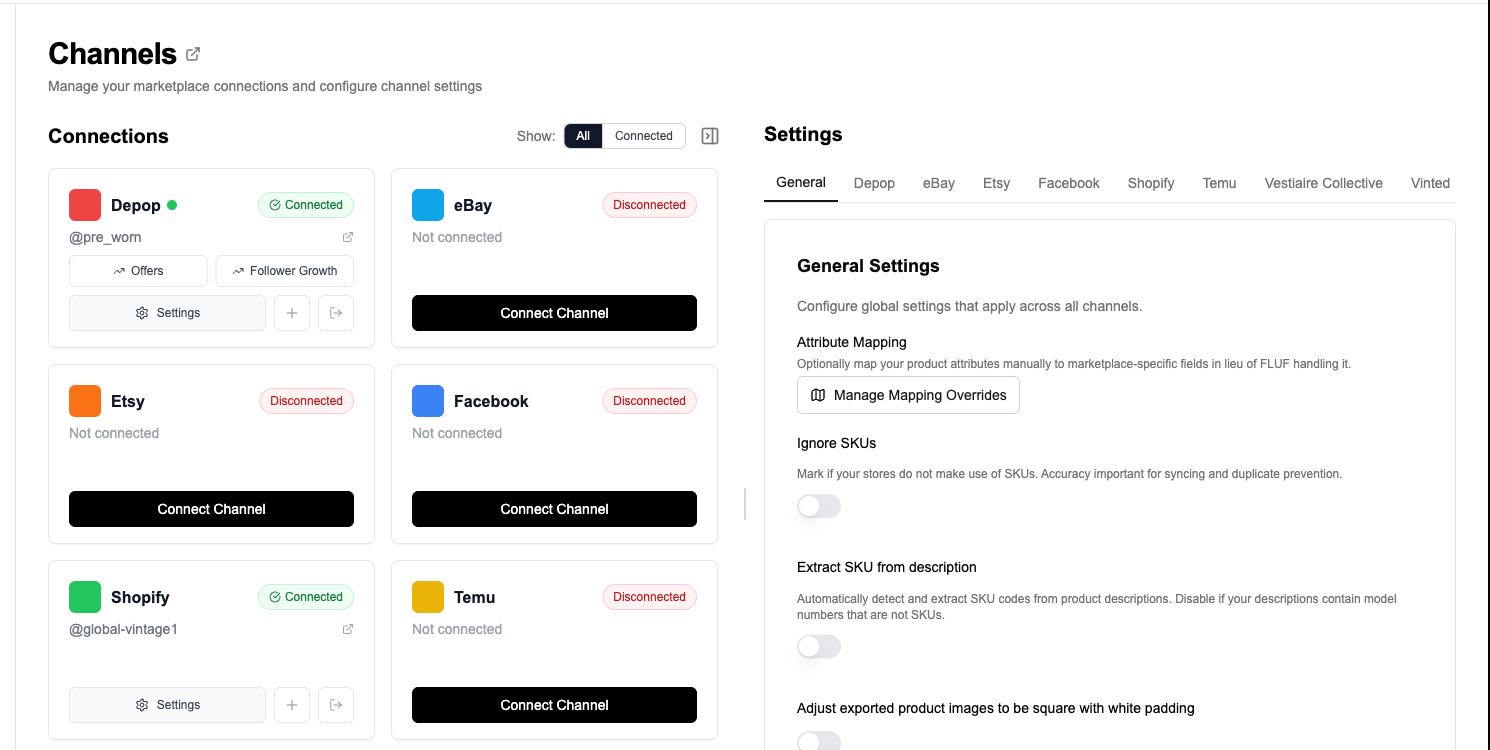
- Connect Depop through the FLUF connection flow so you can publish directly to your Depop inventory.
- Import your Whatnot inventory into FLUF Connect. Your listings appear with titles, pricing, images, and available product data.
- Select the items you want on Depop. You can crosslist one listing at a time or work in bulk if you are moving a larger batch.
- Review the field mapping. FLUF pre-fills the Depop listing using the Whatnot data it already has, so you only need to adjust edge cases rather than rebuild everything.
- Publish to Depop. Once live, FLUF starts monitoring the item across both channels so a sale on one side removes it from the other.
This is particularly helpful if your Whatnot business has a rhythm: source, prep, run a show, then keep the unsold or slower-moving pieces working elsewhere. Depop becomes a natural second home for the items that deserve longer visibility and more curated presentation.
What transfers from Whatnot to Depop?
FLUF Connect transfers the listing data that matters most to a Depop buyer and flags the parts that need review because the platforms work differently. Whatnot’s seller hub can hold live-selling context that simply does not exist on Depop, while Depop has its own presentation style and buyer expectations.
Field mapping — Whatnot to Depop
| Whatnot Field | Depop Field | Transfer Status | Notes |
|---|---|---|---|
| Title | Title | ✅ Automatic | FLUF carries your listing title into Depop so you are not rewriting every item by hand. |
| Description | Description | ✅ Automatic | Core product copy transfers, which is especially useful for detailed vintage, sneaker, and branded listings. |
| Images | Images | ✅ Automatic | FLUF moves your listing images across so the Depop draft starts visually complete. |
| Price | Price | ✅ Automatic | Price transfers automatically, but many sellers review it because Whatnot and Depop can support different pricing strategies. |
| Category | Category | ⚡ Smart mapped | FLUF maps Whatnot inventory into the closest Depop category structure available. |
| Brand | Brand | ⚡ When present | Brand data transfers when it exists cleanly in the source listing. |
| Condition | Condition | ⚡ Mapped | Condition is translated into the closest Depop-ready listing state. |
| Size / product attributes | Size / attributes | ⚠️ Review recommended | Fashion listings usually map well, but mixed inventory and non-fashion stock should be checked before publishing. |
| Quantity | Inventory representation | ⚠️ Review recommended | Depop listings are usually simpler than Whatnot seller-hub inventory, so multi-quantity items should be reviewed. |
| Live show context | None | ❌ Not available | Auction timing, show notes, giveaways, and live-session context do not carry into Depop. |
| Shipping setup | Shipping setup | ⚠️ Configured separately | Whatnot and Depop have different shipping flows, so your Depop shipping settings should be confirmed before publishing. |
Best practice: Whatnot to Depop works best for inventory that still makes sense as a standalone listing when removed from the live-show context. A single vintage jacket, pair of Jordans, handbag, or branded knit transfers naturally. A rapid-fire auction bundle usually needs more cleanup before it belongs on Depop.
What usually needs manual attention
- Live language: if the Whatnot description references a stream, sudden-death auction, or bundle rules, clean that up for Depop’s static listing format.
- Pricing strategy: a Whatnot price can reflect auction behaviour or fast-turn stock. Depop often rewards a more curated, margin-conscious price.
- Category fit: fashion inventory fits naturally; collectibles and mixed bundles may not be worth crosslisting to Depop.
- Size and variants: check size presentation on fashion items so the Depop draft matches how buyers expect to shop.
How inventory sync works between Whatnot and Depop
FLUF Connect keeps the important part in sync: the sale state. If the item sells on Whatnot, FLUF removes it from Depop. If it sells on Depop, FLUF removes it from Whatnot. That is the safeguard that lets you sell across both without hovering over both apps all day.
| Event | What Happens | Timing |
|---|---|---|
| Item sells on Whatnot | FLUF removes it from Depop and the rest of your connected channels | Within minutes |
| Item sells on Depop | FLUF removes it from Whatnot and the rest of your connected channels | Within minutes |
| Item deleted manually on one channel | The other listing is not automatically deleted | — |
| Price changed directly on one channel | Not automatically mirrored to the other | — |
| Description edited directly on one channel | Not automatically mirrored to the other | — |
That split is deliberate. Most resellers do not want every pricing experiment or copy tweak pushed everywhere automatically. What they do want is protection from overselling, especially when Whatnot sales can happen while they are live or when Depop sales come in outside show hours. FLUF focuses on that high-stakes sync first.
When a Whatnot item sells mid-show, FLUF Connect can remove the matching Depop listing before a second buyer grabs it. When a Depop buyer checks out later, FLUF removes the Whatnot listing so your next show starts with accurate inventory.
Before and after FLUF Connect
Without FLUF Connect
- Open the Whatnot listing
- Copy the title
- Copy or rewrite the description to remove live-show wording
- Download or save the images
- Open Depop and start a new listing
- Upload the images again
- Paste and clean the text
- Choose a Depop category
- Re-enter size, condition, and brand details
- Set a Depop-ready price
- Publish the listing
- Remember to remove it manually if it sells during a Whatnot show
Result: a repetitive workflow that is easy to postpone and easy to get wrong when inventory starts moving.
With FLUF Connect
- Import Whatnot inventory into FLUF
- Select the item or batch
- Review the Depop draft
- Publish
- Let sync handle the sold-item cleanup across both channels
Result: a short operator review instead of a full manual rebuild. That is the difference between “I should crosslist those later” and actually getting more of your inventory live.
Automation features for Whatnot and Depop sellers
This channel pair is powerful because FLUF is not only publishing listings. It also handles the operational side that normally breaks when you sell across a live marketplace and a static marketplace at the same time.
| Feature | Whatnot | Depop |
|---|---|---|
| Crosslisting | ✅ | ✅ |
| Inventory sync | ✅ | ✅ |
| Bulk operations | ✅ | ✅ |
| Order sync | ✅ | ✅ |
| Auto-relisting | — | ✅ |
| Offer management | — | ✅ |
That means the Depop side of the workflow can keep working even after the initial crosslist. You can use auto-relisting to keep stale Depop listings fresh, use offer management to handle incoming offers automatically, and use bulk operations to update batches of listings without opening them one by one.
If you are already using Whatnot for live velocity and Depop for evergreen visibility, FLUF Connect becomes the layer that prevents those two systems from drifting apart.
How much does it cost to crosslist from Whatnot to Depop?
FLUF Connect pricing is based on the size of your inventory, not on which two channels you connect. If you crosslist from Whatnot to Depop, you still get access to the wider platform: inventory sync, bulk tools, relisting, offer management where supported, and additional marketplaces through the same account.
| Plan | Monthly | Yearly | You save | Crosslisted products |
|---|---|---|---|---|
| Starter | £9/month | £59/year | 45% | Unlimited |
| Seller | £29/month | £199/year | 42% | Unlimited |
| Pro | £99/month | £709/year | 40% | Unlimited |
| Super Seller | Custom pricing — tell us what you need | Unlimited | ||
Automatic relisting, offer management and smart pricing are included from Seller upwards. Starter covers unlimited crosslisting, inventory sync and order sync without them. Yearly billing is charged once a year. There is no free plan. New accounts get 7 days for £1, then move onto a plan.
You are not limited to just Whatnot and Depop either. FLUF Connect also supports other connected marketplaces, so the same inventory can flow into the rest of your selling stack as your business grows.
Sources and verification
Last verified: 2026-04-17.
- Whatnot seller fees — seller fee structure and listing-fee policy.
- Sell on Depop — zero selling fees claim, payment processing, and shipping positioning.
- FLUF Connect pricing — plan tiers and annual billing.
- FLUF Connect integrations — supported marketplace coverage.
Related guide: how to crosslist from Whatnot to Etsy.
Related: Poshmark to Whatnot.
Frequently Asked Questions
Yes. FLUF Connect can import your Whatnot inventory, turn it into Depop-ready drafts, and publish to Depop without rebuilding each listing manually. You review the draft, publish it, and FLUF handles sold-item sync across both channels.
Fashion, vintage, sneakers, accessories, and other inventory that still makes sense as a standalone static listing are the best fit. Pure live-show bundles or auction-only listings usually need extra cleanup before they belong on Depop.
Yes. When an item sells on Whatnot, FLUF removes it from Depop. When it sells on Depop, FLUF removes it from Whatnot. This is the main protection against overselling when you run both channels together.
The core listing data transfers automatically: title, description, images, price, category, and other product details FLUF can read from your Whatnot inventory. Live-show-only context such as auction timing or stream notes does not transfer because Depop does not use those fields.
Not automatically. FLUF focuses on syncing the high-stakes sale state so sold items are removed everywhere. If you want to change pricing or descriptions in bulk, use FLUF Connect's bulk tools rather than editing each channel separately.
Yes. Once the item is live on Depop, FLUF Connect can support Depop-side relisting workflows to keep your inventory fresh and visible. That is useful if you use Whatnot for fast live sales and Depop for longer-tail discovery.
Yes, especially if you already have inventory on Whatnot and want a second sales channel without doubling your admin work. FLUF reduces the job to import, review, and publish instead of copy-paste and manual cleanup.
Plans start at £9 per month with no cap on how much you list. Every paid plan includes the broader FLUF feature set, not just a single channel pair.