
Sell on OpenCart: Store Setup and FLUF Compatibility
Plan your own shop, check your catalogue and connect supported OpenCart products to FLUF.
7 days for £1, then from £9/month.



OpenCart can suit a business that wants its own online shop and can take responsibility for running it. FLUF Connect currently connects OpenCart 4.1.0.4 stores selling stock-tracked simple products. Check your catalogue first: options, variants, discounts and specials are outside this release.
Is OpenCart right for your products?
Start with how you sell your stock. A shop selling individual books, household items or one-off accessories has different needs from a clothing brand offering every design in several sizes. Before choosing a store platform, write down how customers choose an item and how you count the available units.
OpenCart is free, open-source shop software. Its features include product options, multiple stores, payment and shipping extensions, and customer reviews. Those are OpenCart features; each connection you add has its own compatibility requirements.
For FLUF Connect, the current fit is a catalogue of simple physical products with stock tracking. A product with size choices does not qualify just because it has photos and a price. If your catalogue depends on those choices, keep them intact and choose a connection that supports them. Compare the available FLUF integrations before changing how you sell.
What do you need to run an OpenCart shop?
Treat opening your own shop as an ongoing retail responsibility. Decide who will look after the website, answer customer questions and resolve an unsuccessful checkout. A useful preparation step is to name one person responsible for each task below, even if you initially do everything yourself.
| Responsibility | Decision to make before launch |
|---|---|
| Hosting and maintenance | Choose who will manage your hosting, domain, HTTPS certificate, backups and software updates. |
| Payments and delivery | Choose the services you will use, check their charges and test checkout with your delivery settings. |
| Catalogue preparation | Prepare accurate descriptions, photographs, stock quantities, weights and prices for the products you intend to sell. |
| Customer service | Decide who handles delivery questions, returns and refunds, and write clear shop information. |
| Finding buyers | Plan how people will reach your shop: existing customers, search, social posts or another suitable source. |
Budget for the work as well as the software. Ask your host or developer what their service covers and what costs extra. Keep a separate allowance for payment services, delivery, optional extensions and any tools you use to manage sales. This gives you a more useful comparison than the download price alone.
Which OpenCart stores can connect to FLUF?
The FLUF OpenCart setup guide specifies version 4.1.0.4, the default store and one OpenCart store per FLUF business. Your shop needs a public HTTPS address. Ask your hosting provider to check the requirements in the installation guide if you do not manage the hosting yourself.
Products without stock tracking are excluded from import, alongside the catalogue types identified above. Check a representative selection before planning a full catalogue rollout. Include a normal full-price item and any product with unusual settings so you can identify what should stay under separate management.
For a concrete stock check, start with one eligible product. The documented behaviour is that quantity 0 disables it; a positive stock update enables it again. That also applies if your shop normally accepts backorders. Test that behaviour in a test store before relying on it for items you want to keep selling after available stock runs out.
What can you manage with FLUF Connect?
FLUF Connect brings supported OpenCart products into your wider selling workflow. This table summarises the supported tasks and where you still work in OpenCart.
| Task | What you can do |
|---|---|
| Bring in your catalogue | Import supported products with titles, descriptions, SKU, base prices, categories and photographs. |
| Publish and edit | Publish simple products to OpenCart and edit titles, descriptions, SKU, base prices and quantities. Manage later image changes in OpenCart. |
| Keep stock aligned | Synchronise stock with connected channels. Updates are periodic; simultaneous purchases remain possible. |
| Follow new sales | View new OpenCart orders in your store’s processing or completed statuses. Orders created before connection do not trigger stock updates. |
| Handle after-sales work | Manage refunds, cancellations and fulfilment in OpenCart. Cancellations do not automatically restock other channels. |
| Use listing automation | Automatic relisting and rule-based autolisting are unavailable for this connection. |
For the steps from importing an item to publishing it elsewhere, use the OpenCart crosslisting guide. The inventory sync overview explains the wider stock workflow; check the requirements of each destination you intend to use.
How do you set up the OpenCart connection?
Install the FLUF extension in your store, choose your product defaults and connect the shop from FLUF’s Channels screen. Download it from the FLUF Connect listing on OpenCart Marketplace. Follow the full installation guide alongside these preparation steps.
- Back up your store. Keep a test store available for checking a new listing and checkout before changing your everyday workflow.
- Install the extension. In OpenCart, use Extensions → Installer, then install FLUF Connect under Extensions → Extensions → Modules.
- Review product defaults. Choose the tax class, shipping requirement, weight and dimensions used for new products. Confirm them when you are ready to allow publication.
- Connect the store. Use the extension’s connection instructions, then enter your store address and connection key in FLUF Channels. Keep the key private.
- Check a small selection. Inspect product details and prices, then test a listing and checkout before expanding to the full catalogue.
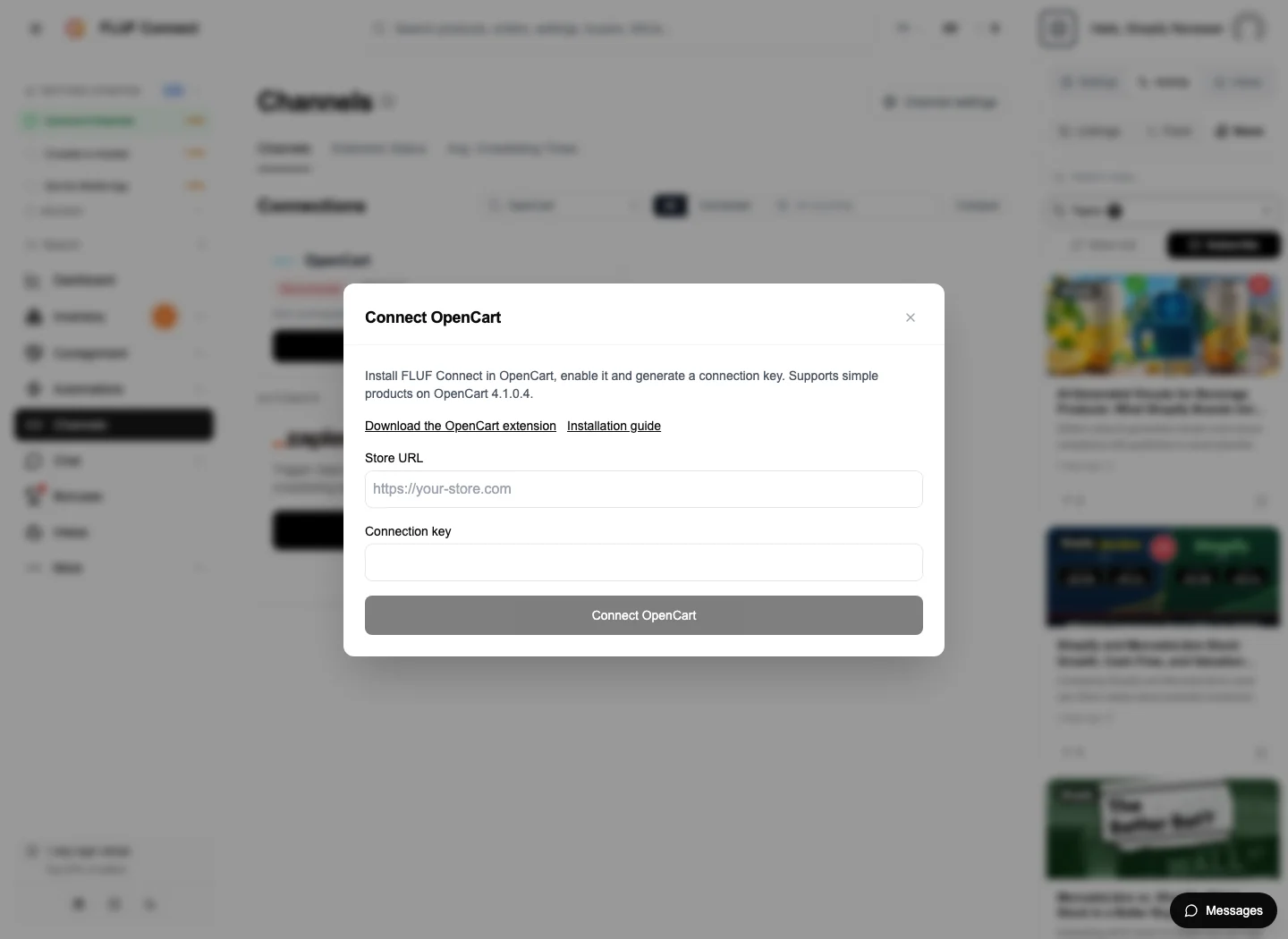
OpenCart prices imported and published through FLUF are base prices before tax. Check the intended selling price on each destination. Your chosen tax and delivery defaults apply to newly created products; adjust individual items in OpenCart when their requirements differ. Test any custom checkout or inventory extensions separately.
You can disconnect the shop in FLUF when you stop using the connection. To revoke access from the store, use the OpenCart module’s disconnect control or uninstall it. Existing products and photos remain in your shop.
What does connecting OpenCart cost?
The extension download is free. Connecting it requires a FLUF account with an eligible service plan; FLUF service fees apply. Use the current FLUF pricing and billing options below when budgeting alongside your shop’s own running costs.
7 days for £1, then from £9/month| Plan | Monthly | Yearly | You save | Crosslisted products |
|---|---|---|---|---|
| Starter | £9/month | £59/year | 45% | Unlimited |
| Pro | £29/month | £199/year | 42% | Unlimited |
| Super Seller | Custom pricing — tell us what you need | Unlimited | ||
Automatic relisting, offer management, smart pricing and listing boosts are included from Pro upwards. Starter covers unlimited crosslisting, inventory sync, order sync and Instagram posting without them. Accounting integrations are included from Pro upwards. Yearly billing is charged once a year. New accounts get 7 days for £1, then move onto a plan.
Save 42% when you pay yearlyStart with the products and destinations you actually need. The guide to selling on multiple platforms helps you plan that expansion. You can also compare other selling channels before deciding where an OpenCart shop belongs in your business.
Sources
- OpenCart features (checked September 2026)
- FLUF OpenCart setup guide (checked September 2026)
- FLUF Connect on OpenCart Marketplace (checked September 2026)
- FLUF pricing (checked September 2026)
Subscribe to the seller news brief
The marketplace news that changes how you list, in one short email.
- Fee, policy and algorithm changes across 60+ marketplaces
- Only the topics you pick — the marketplaces you actually sell on
- Short enough to read in a minute. Daily or weekly, unsubscribe in one click
No spam. We never share your address.
Pick your topics first ›Frequently Asked Questions
The current extension supports OpenCart 4.1.0.4 only. It connects the default store, with one OpenCart store per FLUF business.
This release supports stock-tracked simple products. Products with options, variants, discounts or specials, and products without stock tracking, are excluded.
The extension is free to download. You also need a FLUF account and an eligible service plan. FLUF service fees apply; see the pricing page for current terms.
Manage refunds, cancellations and fulfilment in OpenCart. Cancelling an order does not automatically restore stock on your other channels.
Yes. You can publish simple products after confirming the tax and delivery defaults in the OpenCart extension. You can also import supported existing OpenCart products into FLUF.
No. Stock updates are periodic, so simultaneous purchases remain possible. New orders in your processing or completed statuses are supported; orders created before connection do not trigger stock updates.