
OpenCart Crosslisting: Import Products and Sync Stock
Bring simple OpenCart products into FLUF Connect, publish to connected channels and manage stock. Supports OpenCart 4.1.0.4.
7 days for £1, then from £9/month.



OpenCart crosslisting with FLUF Connect lets you bring supported store products into one workspace, then publish them to your connected sales channels. You can also publish products into OpenCart. This release supports OpenCart 4.1.0.4 and stock-tracked simple products in your default store. Stock updates are periodic.
Your OpenCart catalogue already contains work you should not have to repeat: photographs, descriptions and product details. FLUF Connect helps you reuse that work when expanding to another sales channel. Start with a small selection of products, check the destination listings, then build out the catalogue once the first batch is working.
Which OpenCart products can you crosslist?
FLUF Connect imports simple products with stock tracking enabled. A product with options, variants, a special price or a discount is outside this release’s scope. Check those requirements before planning a catalogue-wide rollout: the FLUF Connect OpenCart extension lists the supported version and requirements.
A simple product can be a single used camera, a boxed board game or several identical replacement parts. Each is sold as one product without a size or colour selector. A T-shirt offered in several sizes on one product page needs a different stock structure and is not suitable for this connector. Keep those listings in your existing store workflow.
| Your catalogue | Suitable for this release? | What to do |
|---|---|---|
| Simple product with a recorded stock quantity | Yes | Check the photos, description and price before crosslisting. |
| Product with selectable sizes or colours | No | Continue managing the options in OpenCart. |
| Product with discounts or special prices | No | Keep it out of the initial import selection. |
| Product without stock tracking | No | Use a stock-tracked product for your first connection test. |
| Products in an additional OpenCart store | No | This release covers the default store only. |
If you are still choosing a store platform, the OpenCart selling and integration guide covers store ownership, setup and compatibility. This page focuses on the work after you have a suitable store and catalogue.
How do you crosslist from OpenCart?
Connect your store, import eligible products and choose a supported destination in FLUF Connect. Review the product for that destination before publishing. Crosslisting reuses your catalogue content, but your selling account, product category and listing still need to meet the destination’s requirements.
- Check the store. Confirm OpenCart 4.1.0.4, a public HTTPS storefront and simple products with stock tracking. Connect one OpenCart store per FLUF business.
- Install the extension. Download it from the OpenCart Marketplace and follow the OpenCart installation guide. Your store administrator may need to do this.
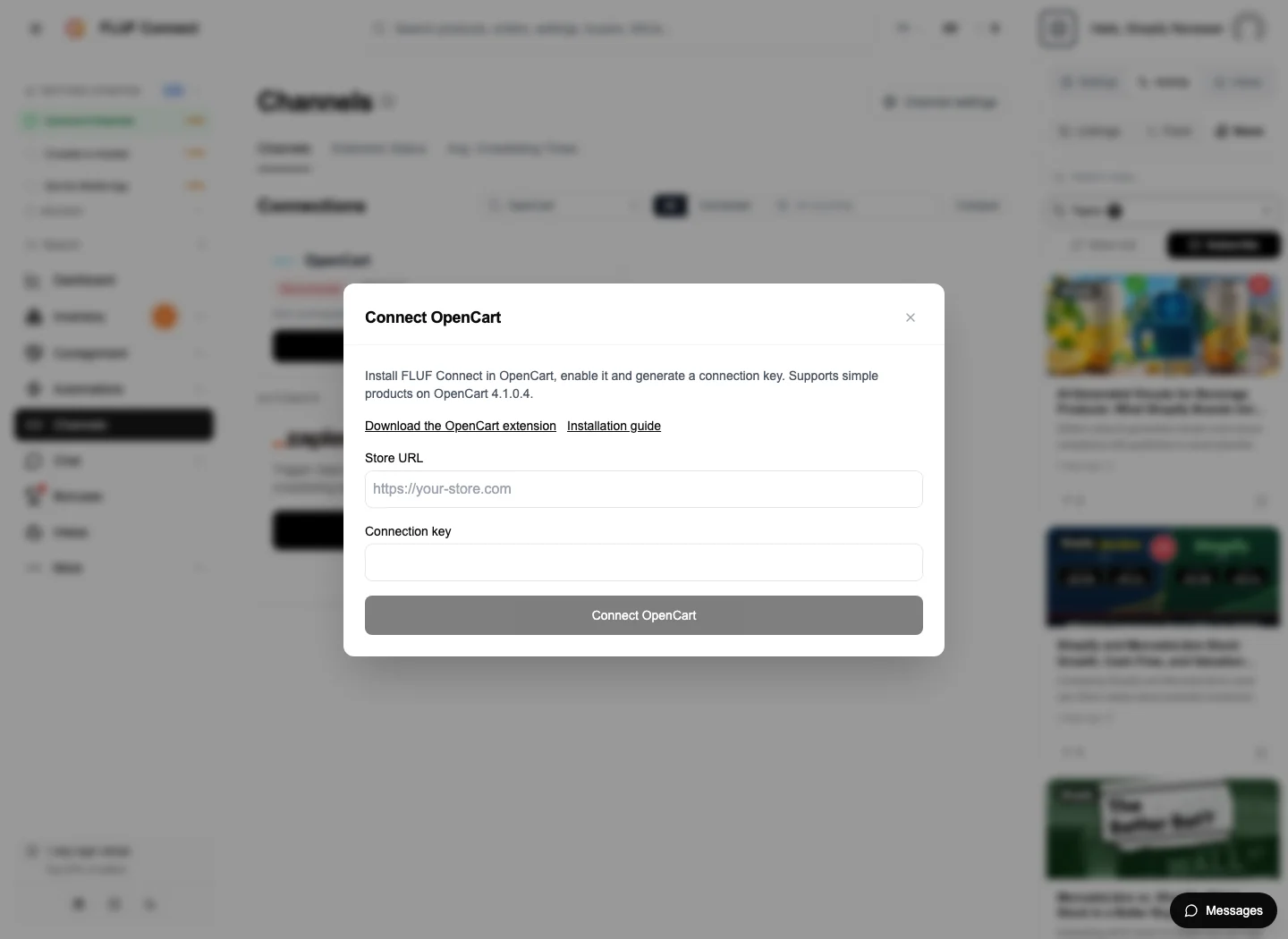
- Connect in FLUF. Open Channels, choose OpenCart and complete the connection using the details provided by your installed extension.
- Import a small selection. Check that each product’s title, description, photographs and stock quantity describe what you actually have available.
- Choose the next channel. Connect your selling account and review its requirements in the FLUF integrations directory. Choose a channel that accepts your stock and seller location.
- Review and publish. Check the category, condition, selling price and delivery details. Open the resulting listing on its destination before adding more products.
Start with products you can recognise easily. A small first batch makes a wrong category or missing detail easier to spot than importing your whole store at once. This is also a useful point to decide who on your team will handle listing corrections, stock checks and customer messages. You choose which products to publish: automatic relisting and rule-based autolisting are not supported for OpenCart.
What should you check before setting destination prices?
OpenCart prices imported into FLUF are base prices before tax. Do not assume the imported figure equals the amount a customer sees at checkout. Set the destination selling price with your own tax treatment, delivery costs and marketplace charges in mind.
Keep a short pricing worksheet for the first products you crosslist. Record the store’s base price, its customer-facing price and the intended destination price separately. That helps you catch a price that appears too low even when the import itself is correct. Check the destination’s current fee information before choosing your margin.
| Check | Why it matters |
|---|---|
| Base price versus checkout price | The OpenCart import uses the base price before tax. |
| Product description and condition | A description written for regular store customers may need more context for a new marketplace audience. |
| Delivery promise | Your destination listing should match how and where you can dispatch the item. |
| Available quantity | Multiple listings may offer the same physical stock; check availability before publishing. |
Bring your OpenCart catalogue into FLUF Connect. 7 days for £1, then from £9/month.
Can you publish products into OpenCart too?
Yes. FLUF Connect can create supported simple products in OpenCart as well as import them. Before publishing into your store, choose and confirm the tax class, shipping requirement, weight and dimensions in the extension. These defaults affect new products, so set them for the stock you plan to publish.
For example, a store selling both small accessories and heavy equipment should check those defaults before each different product group. One set of shipping dimensions is unlikely to suit both. After creating a product, review it in OpenCart and on the storefront to check its description, price and delivery setup.
FLUF Connect supports edits to the title, description, SKU, base price and quantity. Photographs can be included when creating a product; later image changes remain in OpenCart. The merchant guide explains the supported actions and controls.
What happens when an OpenCart product sells?
FLUF Connect reads new OpenCart sales after connection when orders reach your store’s processing or completed statuses. Supported inventory updates can then keep connected listings aligned. Updates happen periodically, so two customers can still buy the same stock before an update reaches every channel.
Consider a stock-tracked product with three units. A customer buys one through OpenCart; you should expect two units to remain in the store. Use your first orders to check the corresponding stock in FLUF and your other connected destinations.
The inventory synchronisation guide explains the wider workflow. Each connected channel has its own supported actions. For any destination without automatic sale detection, keep a manual routine for removing stock sold there. Avoid assuming that connecting a new destination makes every stock direction automatic.
Refunds, cancellations and fulfilment remain in OpenCart. A cancelled order does not automatically put stock back on other channels. Once you decide an item is available again, check its quantity and availability across the places where you sell it. Orders created before connection do not trigger new stock updates.
How much does OpenCart crosslisting cost?
The OpenCart extension is free to download. Using FLUF Connect requires an account and an eligible service plan. The current offer is 7 days for £1, then from £9/month. Read the FLUF pricing and trial terms before signing up; a free extension download does not mean the hosted service is free.
| Plan | Monthly | Yearly | You save | Crosslisted products |
|---|---|---|---|---|
| Starter | £9/month | £59/year | 45% | Unlimited |
| Pro | £29/month | £199/year | 42% | Unlimited |
| Super Seller | Custom pricing — tell us what you need | Unlimited | ||
Automatic relisting, offer management, smart pricing and listing boosts are included from Pro upwards. Starter covers unlimited crosslisting, inventory sync, order sync and Instagram posting without them. Accounting integrations are included from Pro upwards. Yearly billing is charged once a year. New accounts get 7 days for £1, then move onto a plan.
Save 42% when you pay yearly
Your plan does not remove the connector’s product and store restrictions. Start with compatible stock, then choose the plan that fits how you operate. OpenCart hosting, store maintenance and any destination selling fees are separate costs.
Where should you go next?
- Check whether your OpenCart store is a fit.
- Explore FLUF’s crosslisting guides.
- Plan your multi-platform selling workflow.
- Check your next sales channel.
Sources & verification
- FLUF Connect on OpenCart Marketplace — compatibility and extension download; checked September 2026.
- FLUF OpenCart merchant guide — supported products, setup and limitations; checked September 2026.
- FLUF pricing — current plans and trial terms; checked September 2026.
Frequently Asked Questions
This release supports OpenCart 4.1.0.4 only, using the default store. You can connect one OpenCart store per FLUF business.
Products with selectable options or variants are not supported. Use stock-tracked simple products without discounts or specials.
Yes, for supported simple products. First confirm the tax, shipping, weight and dimension defaults in the OpenCart extension.
No. Stock updates happen periodically, and simultaneous purchases remain possible. Keep stock checks in your operating routine.
No. Handle the cancellation in OpenCart, then check and adjust availability on your other channels when the item is ready to sell again.
The extension download is free. FLUF Connect requires an account and an eligible paid service plan. Current trial and subscription terms appear on the pricing page.