
Crosslist from Depop to Whatnot – Automatically
Move your Depop listings to Whatnot in minutes. FLUF Connect maps your listing data, publishes to Whatnot, and keeps inventory in sync so you do not oversell during live shows.
7 days for £1, then from £9/month.



- Best fit: Depop to Whatnot works best for vintage fashion, streetwear, sneakers, jewellery, and collectible-adjacent inventory that can sell in live shows as well as static listings.
- What transfers automatically: title, description, photos, price, brand, size, condition, and category mapping are handled inside FLUF Connect, with Whatnot-specific attributes added where needed.
- Whatnot-specific review points: some listings need a category check, condition confirmation, or shipping profile selection before publishing to Whatnot.
- Inventory sync: when an item sells on Depop or Whatnot, FLUF Connect removes it from your other connected channels within minutes to prevent overselling.
- Automation split: Depop supports relisting and offer automation; Whatnot supports crosslisting, inventory sync, and order sync, but not relisting or offer management.
- Pricing: start with FLUF Connect from £9/month on Starter at £9/month, with no cap on how much you list.
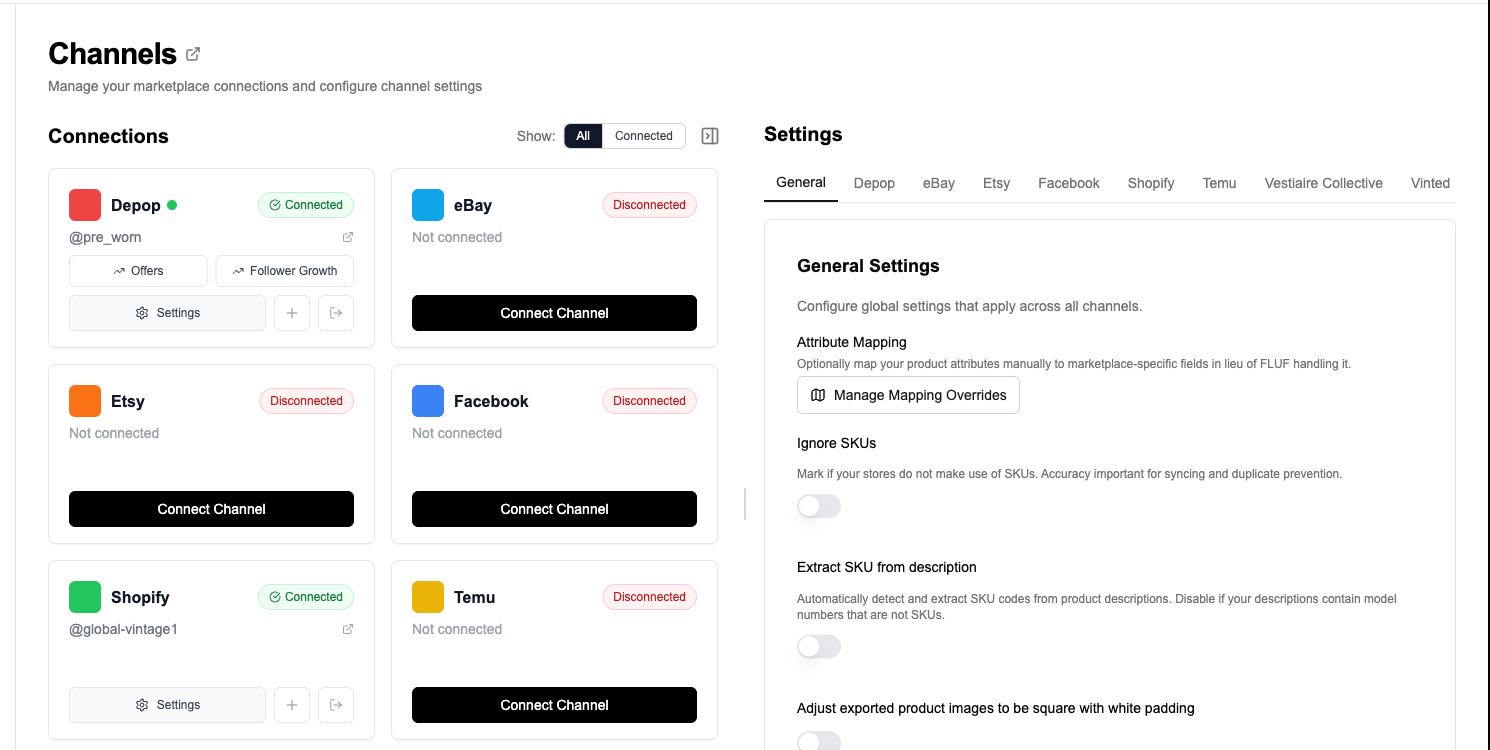
Why Crosslist from Depop to Whatnot?
Crosslisting from Depop to Whatnot lets you take inventory that already performs on a static, fashion-first marketplace and put it in front of a second audience that buys through live energy, urgency, and community. Depop is strongest when buyers want to browse, compare, and discover style through curated photos. Whatnot is strongest when buyers want the excitement of live selling, fast-moving drops, and show-based inventory turnover. Using both means the same item can work in two very different buying environments without you rebuilding the listing by hand.
This pairing is especially useful for sellers with vintage clothing, streetwear, sneakers, jewellery, Y2K pieces, and selected collectible-fashion crossover items. A jacket that sits passively on Depop can move quickly during a Whatnot live show. A pair of sneakers can keep selling on Depop between streams, while Whatnot gives you a second route to clear inventory faster. If you already source for a younger, trend-aware audience, adding Whatnot expands how you sell, not just where you sell.
The operational problem is obvious: once you start listing the same stock on Depop and Whatnot, manual tracking breaks down fast. If something sells during a Whatnot show while it is still active on Depop, you risk overselling and disappointing a buyer. FLUF Connect solves that by connecting both channels to one dashboard and running inventory sync across your connected marketplaces.
| Depop | Whatnot | |
|---|---|---|
| Best for | Curated fashion, vintage, streetwear, static listings | Live selling, fast inventory turnover, community-driven buying |
| Selling format | Photo-based listings | Live shows plus marketplace inventory |
| Discovery style | Browse, search, follows, style-led shopping | Live video, auctions, repeat viewers, urgency |
| FLUF support | Crosslisting, relisting, offers, sync, order support | Crosslisting, sync, order support |
| Main reason to use both | Always-on visibility | Faster sell-through during streams |
List once on Depop, then move the same inventory into Whatnot without copying everything manually.
How to Crosslist from Depop to Whatnot with FLUF Connect
Crosslisting from Depop to Whatnot with FLUF Connect is a simple review-and-publish workflow. You connect both channels, import your existing Depop inventory, choose the products you want on Whatnot, check the mapped fields, and publish. FLUF then keeps the inventory tied together so you do not have to remember where each item is live.
1. Connect Your Depop and Whatnot Accounts
Create a FLUF Connect account, connect Depop, and connect Whatnot. Once connected, your existing listings can be pulled into the same dashboard so you are working from one inventory view instead of jumping between apps.
2. Import Your Depop Listings
FLUF Connect imports your Depop product data, including the core listing details you already wrote: photos, title, description, brand, size, price, and condition. That gives you a single source to publish from, instead of recreating the item on Whatnot one field at a time.
3. Select the Products You Want on Whatnot
Choose individual products or work in bulk. If you sell across multiple categories, you can start with the inventory that is most likely to work in a live setting: streetwear bundles, vintage drops, sneakers, jewellery, and other items that benefit from urgency and show energy.
4. Review the Whatnot Mapping
Before publishing, FLUF maps your Depop fields to Whatnot and highlights the pieces that need attention. In most cases, the main review points are the Whatnot category, category-specific attributes, condition wording, and shipping profile. This is where you can make small adjustments so the listing fits Whatnot’s expectations without rewriting the whole thing.
5. Publish to Whatnot
Once confirmed, FLUF publishes your Whatnot listing with the reviewed images, title, description, price and item details. Keep the Whatnot connection available and check publication status.
6. Let Inventory Sync Handle the Risk
After publishing, the important part is no longer the initial listing creation. It is what happens after the sale. When the item sells on Depop or Whatnot, FLUF Connect updates the rest of your connected stack within minutes so the listing does not linger somewhere else and cause a double sale.
What Transfers When You Crosslist from Depop to Whatnot?
Depop and Whatnot do not use identical listing structures, so the goal is not a blind copy-and-paste. The goal is to move the meaningful selling data over cleanly while filling in the Whatnot-specific requirements that make the listing publishable. FLUF Connect handles the common fields automatically and maps the Whatnot-specific pieces around them.
| Depop Field | Whatnot Field | Transfer | Notes |
|---|---|---|---|
| Title | Title | ✅ Automatic | Core listing title transfers, with the Whatnot length cap enforced when needed. |
| Description | Description | ✅ Automatic | Your Depop description is reused so you are not rewriting every listing from scratch. |
| Images | Listing images | ✅ Automatic | Images transfer into the Whatnot listing creation flow. |
| Price | Price | ✅ Automatic | Price comes across automatically and can be reviewed before publishing. |
| Category | Whatnot category | ⚡ Smart mapped | FLUF maps the item to the closest Whatnot category and stores the selected destination category for reuse. |
| Condition | Condition attribute | ⚡ Mapped | Condition is translated into Whatnot’s category-specific condition values. |
| Brand | Brand attribute | ⚡ Mapped | Brand is carried across where the Whatnot category expects it. |
| Size | Size attribute | ⚡ Mapped | Relevant especially for fashion categories and sneakers. |
| SKU / quantity | Listing inventory data | ⚡ Supported | Useful for inventory tracking and syncing sold state back through connected channels. |
| Shipping details | Whatnot shipping profile | ⚠️ Auto-set | Whatnot requires shipping-profile logic, so FLUF applies the appropriate destination setup based on category and item data. |
What usually needs a quick check? Whatnot is more structured than Depop in a few places, so the main review points are category accuracy and any category-specific attributes. That is normal. The important part is that you are reviewing a mapped listing, not typing it from zero.
Examples of Depop to Whatnot Category Logic
| Depop listing type | Likely Whatnot destination | Why it works |
|---|---|---|
| Vintage Nike jacket | Fashion / outerwear category | Strong fit for both static resale and live-show fashion drops. |
| Jordan sneakers | Sneakers category | High overlap between Depop streetwear buyers and Whatnot live footwear demand. |
| Vintage jewellery lot | Jewellery category | Works well in bundled or rapid-fire Whatnot selling formats. |
How Inventory Sync Works Between Depop and Whatnot
The most important part of Depop to Whatnot crosslisting is not the first publish. It is the sold sync afterwards. FLUF Connect monitors your connected channels and removes sold inventory from the rest of your stack within minutes, which is what prevents the classic multi-platform mistake of selling one item twice.
| Event | What happens | Typical timing |
|---|---|---|
| Item sells on Depop | FLUF removes it from Whatnot and other connected channels | Within minutes |
| Item sells on Whatnot | FLUF removes it from Depop and other connected channels | Within minutes |
| Listing price changes on Depop | Not treated as an automatic full bidirectional price sync event | Review/update in FLUF if you want parity |
| Listing copy changes on one channel | Does not behave like a live mirrored document | Review manually when needed |
If a piece sells on Whatnot during a live stream, FLUF Connect can remove it from Depop before someone else buys it there. If it sells on Depop first, the Whatnot side is cleaned up too. That is the difference between safe multi-channel selling and constant manual cleanup.
Crosslisting from Depop to Whatnot: Before and After FLUF Connect
Without FLUF Connect
- Open the Depop listing
- Download or resave the photos
- Re-enter the title and description into Whatnot
- Choose a Whatnot category manually
- Add brand, size, and condition again
- Handle the Whatnot shipping/profile setup
- Publish
- Keep a mental note or spreadsheet so you remember the item is now live in two places
- Delete the other listing manually when it sells
Result: repetitive listing work up front and manual delisting risk afterwards.
With FLUF Connect
- Import your Depop inventory once
- Select the listings you want on Whatnot
- Review the mapped category and attributes
- Publish
- Let inventory sync handle sold updates across channels
Result: far less admin, far fewer avoidable mistakes, and a much easier path to selling on both a static marketplace and a live-commerce platform at the same time.
Turn Depop inventory into Whatnot-ready listings without rebuilding your catalogue by hand.
Automation Features for Depop and Whatnot Sellers
Depop and Whatnot are not symmetrical channels, so the automation stack is not identical on both sides. Depop is one of FLUF Connect’s deepest channels, with support for relisting and offer workflows. Whatnot’s strength today is crosslisting, sold sync, and order data flow. That still makes the pair valuable, because the biggest multi-channel risk is inventory mismatch, not the lack of mirrored automation everywhere.
| Feature | Depop | Whatnot |
|---|---|---|
| Crosslisting | ✅ | ✅ |
| Inventory sync | ✅ | ✅ |
| Auto-relisting | ✅ | — |
| Offer management | ✅ | — |
| Order sync support | ✅ | ✅ |
| Bulk workflow support | ✅ | ✅ for crosslisting-driven listing management |
If you want the deepest automation on the fashion side of your stack, Depop stays a strong source channel. If you want to add fast-moving live sales without breaking your inventory discipline, Whatnot is a strong destination channel. Together, they cover both passive and live-selling workflows.
If you later want an even broader setup, FLUF Connect can also connect Depop to eBay, expand into Vinted, or make Shopify your central order hub through the wider integrations stack.
How Much Does It Cost to Crosslist from Depop to Whatnot?
FLUF Connect pricing is based on the size of your inventory, not on which individual pair page you use. That means Depop to Whatnot crosslisting is covered by the same plans as your other channels.
| Plan | Monthly | Crosslisted products |
|---|---|---|
| Starter | £9/month | Unlimited |
| Pro | £29/month | Unlimited |
| Super Seller | Custom pricing — tell us what you need | Unlimited |
You also get unlimited listings on the £9/month Starter plan before upgrading, which is enough to test whether the Depop plus Whatnot workflow fits your inventory mix. For full plan details, visit pricing.
Frequently Asked Questions
Can I crosslist from Depop to Whatnot automatically?
Yes. FLUF Connect lets you import Depop listings, map them to Whatnot, review the destination setup, and publish without recreating every listing manually.
What happens when an item sells on Whatnot?
FLUF Connect removes the sold item from Depop and your other connected channels within minutes, which helps prevent overselling.
Does everything from Depop transfer perfectly to Whatnot?
The core listing data transfers cleanly, but Whatnot is more structured in some categories. Category, condition, brand, size, and shipping-profile logic may need a quick review before publishing.
Does Whatnot support relisting and offer automation like Depop?
No. Depop has deeper automation coverage for relisting and offers. Whatnot’s strength in FLUF Connect is crosslisting, inventory sync, and order support.
Who should use Depop and Whatnot together?
Sellers with vintage clothing, streetwear, sneakers, jewellery, and fast-moving fashion inventory are a strong fit. Depop gives you passive style-led discovery, while Whatnot gives you a live-selling channel for faster inventory turnover.
Sell on Depop and Whatnot without managing two separate inventories by hand.
Frequently Asked Questions
Yes. FLUF Connect lets you import Depop listings, map them to Whatnot, review the destination fields, and publish without recreating the listing manually.
FLUF Connect removes the sold item from Depop and your other connected channels within minutes to help prevent overselling.
Not exactly. Depop has deeper automation for relisting and offers. Whatnot supports crosslisting, inventory sync, and order support inside FLUF Connect.
It is a strong fit for sellers with vintage fashion, streetwear, sneakers, jewellery, and other inventory that can work both as static listings and in live-selling formats.