
How to Import Your Existing Listings into FLUF Connect
Two routes in: connect a marketplace you already sell on and your live listings are read in, or upload a CSV, Excel file or Google Sheet if your stock is not listed anywhere yet.
7 days for £1, then from £9/month.



- There are two routes in. Connect a marketplace or store platform you already sell on and your live listings are read in for you — or upload a spreadsheet if your stock is not listed anywhere yet.
- It works from almost every channel FLUF Connect supports — eBay, Shopify, Depop, Etsy, Vinted, WooCommerce, Square and the rest of the supported channel list.
- Your first connection decides your catalogue. Whichever channel holds your best photos, titles and descriptions is the one to connect first — everything you crosslist afterwards is built from it.
- Spreadsheet imports are supported — a CSV, an Excel file, or a Google Sheets link. Up to 5,000 rows per import, with column mapping, a built-in repair tool for broken CSVs, ZIP photo bundles and a one-click undo.
- Switching from another crosslisting tool is easier than migrating from one — you are not moving data out of your old tool at all. You connect the marketplaces underneath it.
- Cost: a 7-day trial for £1, then plans from £9/month. See pricing.
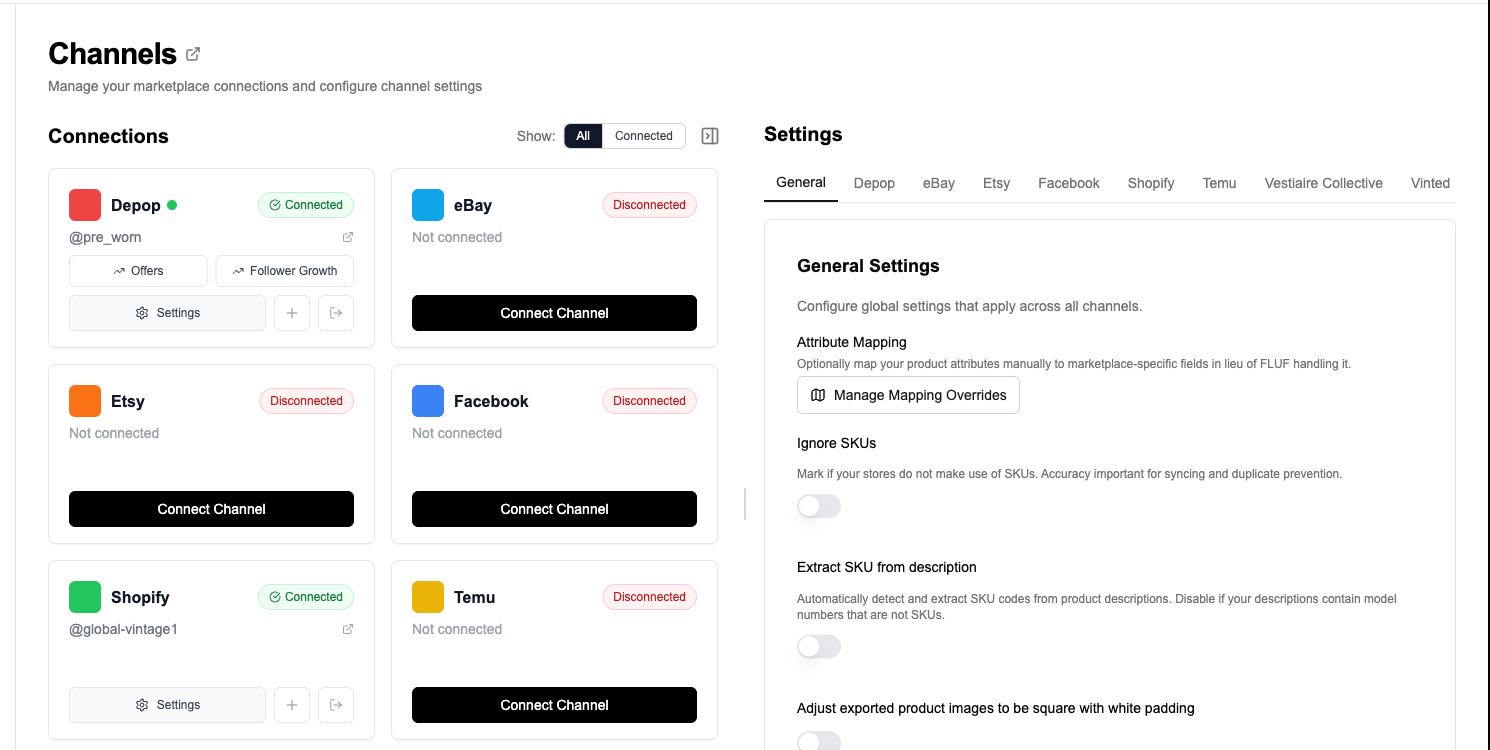
The short answer: it depends where your stock lives now
If you already sell somewhere, importing means connecting that marketplace or store platform — there is no file to export and nothing to map. Once a channel is connected, FLUF Connect reads the listings that are already live in that account and builds your catalogue from them. Most sellers see their first products appear within a few minutes of connecting, with larger catalogues continuing to fill in afterwards.
If your stock is not listed anywhere yet, you upload a spreadsheet instead and FLUF Connect creates the products from it. Both routes are covered below, but connecting a channel is the faster one whenever it is available to you.
This matters because catalogue migration is the single biggest reason sellers stall when moving to a multi-channel tool. The usual process — export a CSV, discover the column names do not match, fix 400 rows by hand, re-upload, find the images did not come across — is where most migrations die. FLUF Connect avoids it by reading from the source of truth you already maintain: your live listings.
What actually happens when you connect a channel
- Connect your account. Follow the sign-in steps for each channel. Some require the FLUF browser extension; see the integrations page for connection requirements.
- FLUF Connect reads your live listings. Titles, descriptions, prices, photos, categories and stock are read from the listings you already have on that channel.
- Your catalogue appears in the dashboard. Products show up in your listings view with their images and prices, ready to select.
- You choose what to crosslist. Nothing is pushed anywhere automatically. You select products, or set bulk rules, and choose the destination channels.
- Stock stays in step from then on. When an item sells on one connected channel, FLUF Connect works to remove or reduce it on the others, which is what stops the same jumper selling twice. See inventory sync for how this behaves per channel.
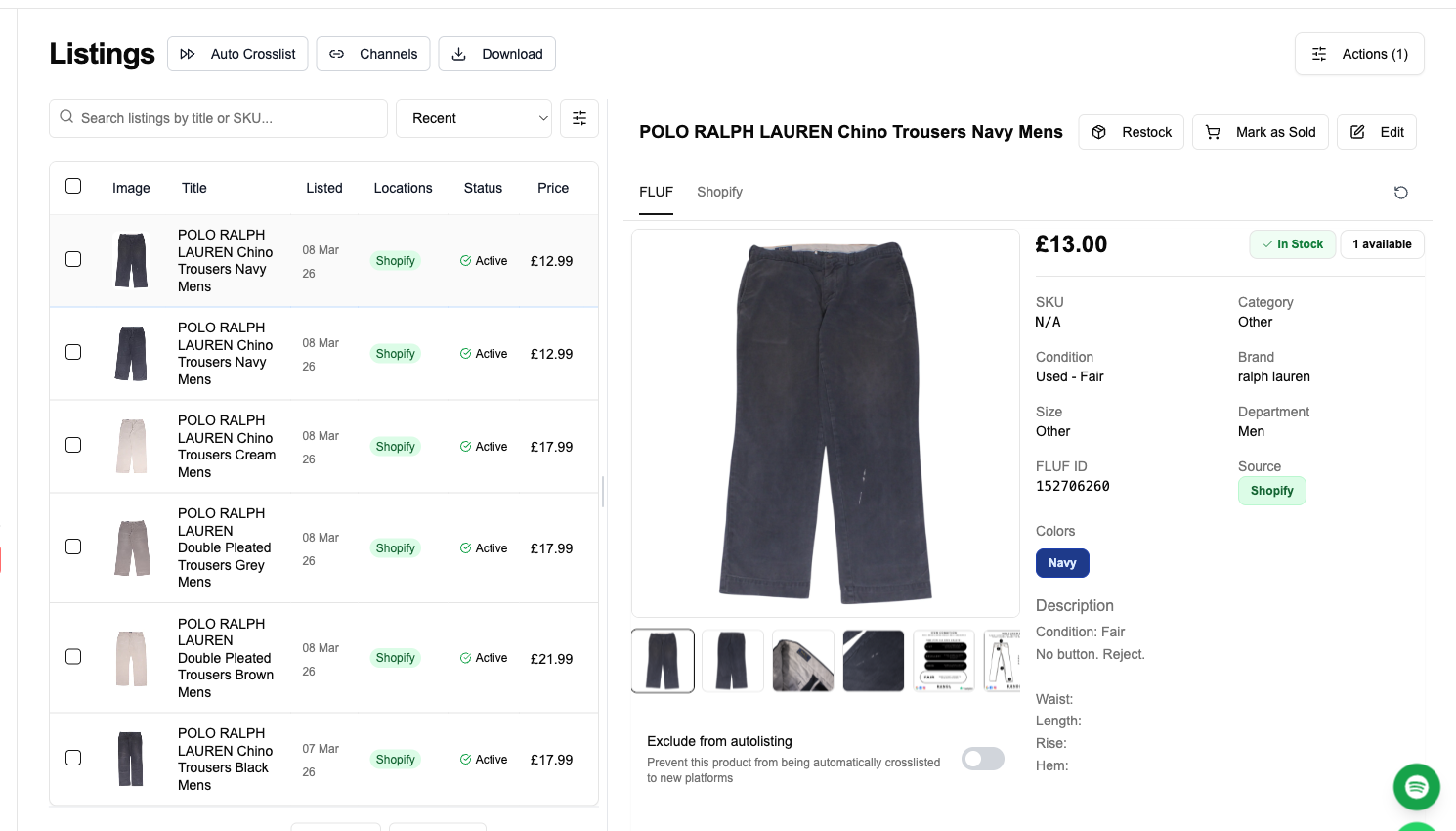
Which platforms you can import from
Almost every channel FLUF Connect supports doubles as an import source. That includes full marketplaces and your own storefront platforms, which is the part sellers usually miss — a Shopify, WooCommerce, Wix, Squarespace or BigCommerce store is often the cleanest catalogue a seller owns, because they wrote it for themselves rather than for a marketplace’s template.
| Import source | Typically the best catalogue when… | Connection type |
|---|---|---|
| Shopify | You already run your own store and have written proper descriptions, variants and SKUs | Sign-in authorisation |
| WooCommerce | Your store is on WordPress and holds your full product data | Sign-in authorisation |
| eBay | You have a large listed catalogue with item specifics already filled in | Sign-in authorisation |
| Etsy | Your listings carry good tags, materials and made-to-order details | Sign-in authorisation |
| Square | Your real inventory lives in a shop till and is already stock-tracked | Sign-in authorisation |
| Depop | Your best photography lives on Depop, as it does for many fashion sellers | Sign-in authorisation |
| Vinted | Your wardrobe is your main catalogue and is already priced for resale | Browser extension |
| Facebook Marketplace | You list locally first and want to widen reach | Browser extension |
The full current list, and which features each channel supports, is on the integrations page — that page is generated from the live channel list, so it is the count to trust rather than any number written into an article.
Which channel should you connect first?
Connect the channel that holds your best product data, not the one where you sell most. Everything you crosslist afterwards is generated from the catalogue that first import creates, so the quality of that source sets the ceiling for every listing FLUF Connect creates from it.
In practice that usually means: if you have your own store on Shopify or WooCommerce, start there — self-built stores nearly always carry longer descriptions and better structured attributes than marketplace listings do. If you are marketplace-only, start with whichever channel you photograph for most carefully. For a lot of second-hand fashion sellers that is Depop or Vinted rather than eBay, because those platforms reward good photography and the seller has already done the work. We have written about the Depop and Shopify combination in more detail, which is one of the most common starting pairs.
You are not locked in. You can connect further channels later, and products found on those channels are matched into the catalogue you already have rather than duplicated wholesale. But the first connection does the most work, so it is worth thirty seconds of thought.
What comes across, and what does not
What is available to read differs by channel, because each platform exposes a different amount of listing data. As a general rule:
| Data | Imported | Notes |
|---|---|---|
| Title | Yes | Carried over as written. Marketplace-specific length limits are applied when crosslisting outward, not on import. |
| Description | Yes | Formatting is normalised, since marketplaces accept very different markup. |
| Photographs | Yes | Images are brought across and reused on destination channels. |
| Price | Yes | Your pricing rules can adjust prices per destination channel afterwards. |
| Stock quantity | Usually | Depends on whether the source channel tracks quantity. Single-item resale channels often do not. |
| Category | Mapped | Every marketplace uses its own category tree, so categories are mapped rather than copied. |
| Brand, size, colour, condition | Where present | Read when the source channel holds them as structured fields rather than free text. |
| Sold history and past orders | No | Importing builds your live catalogue, not your sales archive. |
| Buyer messages and reviews | No | These stay on the marketplace and are not portable. |
Importing from a spreadsheet
If your stock is not listed anywhere yet — a shop’s back-room inventory, a wholesale delivery, a house clearance, an estate lot — there is nothing for FLUF Connect to read from a channel. That is what the spreadsheet importer is for. It creates products from a file rather than from a connected marketplace.
Three ways in, all of which end up in the same place:
- Upload a CSV. The most common route.
- Upload an Excel file (.xlsx or.xls). No need to convert it first. If you have filtered the sheet down, the rows you filtered out are recognised as hidden and left alone rather than imported behind your back.
- Paste a Google Sheets link. The sheet needs to be shared as “Anyone with the link can view” — FLUF Connect reads it from that link rather than asking for access to your Google account.
You then map your columns to FLUF Connect fields. Your column can be called anything; you tell FLUF which of your columns is the title, which is the price, which holds the photos, and so on. Custom fields you have defined on your own account are mappable too, so your own internal data — bin location, lot number, supplier — comes across with the product rather than being flattened out.
The parts that save the most time
| Feature | What it does for you |
|---|---|
| CSV repair | Spreadsheets exported from other systems are frequently broken — wrong delimiter, mangled accented characters, rows with too many columns. FLUF Connect detects these and fixes them, and lets you download the corrected file so you keep a clean copy. |
| Photo bundles | Upload a ZIP of your photographs alongside the spreadsheet and they are matched to the right rows. You can also use image URLs in a column instead. Up to 20 images per listing. |
| Undo import | If an import comes out wrong, reverse the whole thing in one action rather than deleting products by hand. |
| Progress you can share | A large import produces a progress link you can send to someone else — useful if a member of staff is running the import and you want to watch it without logging in. |
Limits worth knowing before you start
- 5,000 rows per import. Larger catalogues go in as several files. This is a per-file limit, not an account limit.
- 20 images per listing.
- Photograph quality still decides everything. A spreadsheet import is only as good as the images attached to it. Rows with no usable photo will produce listings that no marketplace will show well, whatever the data says.
What FLUF Connect does not import
- There is no direct Linnworks import. Export from Linnworks to CSV and import that instead.
- There is no import from a competing crosslisting tool — and you do not need one, as the next section explains.
- Order history does not come across. Orders are tracked from the point your channels are connected onwards, so historical sales stay on the marketplace that made them.
- Buyer messages and reviews are not portable. These belong to your marketplace account and stay there.
Separately from the importer, FLUF Connect has a CSV round-trip for bulk editing listings you already hold: export your listings to a spreadsheet, change prices, costs, SKUs or custom fields across thousands of rows at once, and upload it again to apply them. That path updates existing products rather than creating new ones — it is the tool for entering item costs across a large catalogue so profit reporting works, not a second way in.
Switching from another crosslisting tool
This is the case where sellers most expect a painful migration, and it is actually the easiest one. Your listings do not live inside List Perfectly, Vendoo, Crosslist, Zipsale or any other crosslisting tool. They live on eBay, Depop, Etsy, Vinted and the rest. A crosslisting tool is a control panel sitting on top of marketplaces you own.
So switching is not a data migration at all. You connect the same marketplace accounts to FLUF Connect, your live listings are read in, and you carry on. There is nothing to extract from the old tool, which also means nothing to lose if the old tool’s export is poor or missing.
Two practical points. First, run both tools for a short overlap rather than cancelling immediately — it costs one month and removes all the risk. Second, turn off automated relisting in the old tool before you turn it on in FLUF Connect, or two systems will relist the same items against each other.
Head-to-head detail on the tools sellers most often move from is on the comparison hub, including List Perfectly, Vendoo, Crosslist and Zipsale.
How long the first import takes
Small catalogues are effectively immediate. Large ones arrive in batches — products keep appearing over a period rather than landing all at once, because marketplaces limit how quickly any tool may read from them, and FLUF Connect stays inside those limits deliberately rather than risking your account.
The practical advice is to connect your channels, leave it, and come back later in the day rather than watching the listings page. If you sell at real scale — tens of thousands of products — expect the first pass to take longer and to see the catalogue build up progressively. FLUF Connect is used by businesses running catalogues in the hundreds of thousands of products, so size is not a barrier; patience on day one is just realistic.
After the import: what to do first
- Check a handful of products against the source channel — titles, prices, main photo. Spot-check ten rather than auditing everything.
- Connect your destination channels before crosslisting anything, so you can push to all of them in one pass.
- Crosslist a small batch first. Ten items, one destination. Confirm they look right on the destination marketplace before running thousands.
- Then set up automation — auto-relisting, offer management and auto-crosslisting rules for new stock. These are included in every plan rather than sold as add-ons.
If you are new to running several marketplaces at once, selling on multiple platforms covers the operating side — pricing across channels, avoiding overselling, and which channel combinations suit which stock.
Pricing
Every new account starts with a 7-day trial for £1 with full access. There is no free plan after that; the entry plan is Starter at £9/month, with no cap on how much you list, and every plan includes the full automation feature set rather than gating relisting or offers behind a higher tier.
| Plan | Monthly | Yearly | You save | Crosslisted products |
|---|---|---|---|---|
| Starter | £9/month | £59/year | 45% | Unlimited |
| Pro | £29/month | £199/year | 42% | Unlimited |
| Super Seller | Custom pricing — tell us what you need | Unlimited | ||
Automatic relisting, offer management, smart pricing and listing boosts are included from Pro upwards. Starter covers unlimited crosslisting, inventory sync, order sync and Instagram posting without them. Accounting integrations are included from Pro upwards. Yearly billing is charged once a year. New accounts get 7 days for £1, then move onto a plan.
Save 42% when you pay yearlyProduct limits count unsold, active products, so items that have sold do not count against your allowance. Full detail is on the pricing page.
Import guides for a specific channel
Each source behaves a little differently — what data it holds, how it connects, and what you should fix before crosslisting outward. The per-channel guides cover those differences:
- Importing from eBay — the most complete catalogue most sellers own, and why the titles need rewriting on the way out.
- Importing from Shopify — variants, SKUs and order centralisation, plus what to exclude from a store catalogue.
- Importing from Depop — where your best photography usually lives, and why fewer products import than your shop shows.
- Importing from Vinted — the one channel needing the browser extension, and the two-photograph minimum.
- Importing from Etsy — tags, materials and made-to-order stock, and which parts of a shop are worth distributing.
- Importing from a spreadsheet — CSV, Excel or Google Sheets when your stock is not listed anywhere yet.
Moving from another crosslisting tool rather than starting fresh? Switching crosslisting tools covers that case, which needs no import at all.
Related guides
This page sits in the FLUF Connect guides hub, alongside selling on multiple platforms, how to crosslist on Depop and how to crosslist from WooCommerce. If you are comparing tools before you migrate, start at the comparison hub. If you want to see how crosslisting itself works once your catalogue is in, read the crosslisting overview.
Sources & Verification
Last verified: 2026-08-15. Please contact us if any detail here is out of date.
- FLUF Connect integrations page — the live list of supported channels, connection types and per-channel features. This is the canonical source for which platforms can be imported from.
- FLUF Connect pricing page — plan prices and annual billing.
- FLUF Connect inventory sync — how stock is kept in step across connected channels.
Frequently Asked Questions
You connect a marketplace or store platform you already sell on, and FLUF Connect reads the listings that are already live in that account. There is no file to export and no spreadsheet to upload. Most sellers see their first products appear within a few minutes of connecting, with larger catalogues continuing to fill in afterwards.
Yes. You can upload a CSV, upload an Excel file (.xlsx or.xls), or paste a Google Sheets link — the sheet needs to be shared as "Anyone with the link can view". You map your own column names to FLUF Connect fields, so the file does not have to be in a particular format. Imports are capped at 5,000 rows per file, with up to 20 images per listing. Photographs can come from a ZIP bundle uploaded alongside the file, or from image URLs in a column.
FLUF Connect detects and repairs the common problems in exported spreadsheets — the wrong delimiter, mangled accented characters, and rows with too many columns — and lets you download the corrected file so you keep a clean copy. If you filtered an Excel sheet before uploading, the rows you filtered out are recognised as hidden and are not imported.
There is a one-click undo that reverses the whole import, so you do not have to delete products by hand. Large imports also produce a progress link you can share with someone else, which is useful when a member of staff is running the import.
Connect the channel that holds your best product data, not the one where you sell most. Everything you crosslist afterwards is built from that first catalogue. If you run your own store on Shopify or WooCommerce, start there, because self-built stores usually carry longer descriptions and better structured attributes. If you are marketplace-only, start with whichever channel you photograph for most carefully.
There is nothing to migrate. Your listings do not live inside a crosslisting tool, they live on eBay, Depop, Etsy, Vinted and the rest. You connect those same marketplace accounts to FLUF Connect and your live listings are read in. Run both tools for a short overlap rather than cancelling immediately, and turn off automated relisting in the old tool before enabling it in FLUF Connect so the two do not relist against each other.
Titles, descriptions, photographs and prices are carried over. Stock quantity comes across where the source channel tracks it. Categories are mapped rather than copied, because every marketplace uses its own category tree. Brand, size, colour and condition are read where the source channel holds them as structured fields. Past orders, sold history, buyer messages and reviews are not imported.
Small catalogues are effectively immediate. Large ones arrive in batches, because marketplaces limit how quickly any tool may read from them and FLUF Connect stays inside those limits deliberately rather than risking your account. Connect your channels and come back later in the day rather than watching the listings page.
Every new account gets a 7-day trial for £1 with full access. There is no free plan after the trial. The entry plan is Starter at 9 pounds a month, with no cap on how much you list, and every plan includes the full automation feature set rather than gating relisting or offers behind a higher tier. Paying yearly saves 40 percent on every plan.
No. Importing only builds your catalogue inside FLUF Connect. Nothing is pushed anywhere until you select products and choose destination channels, or set up auto-crosslisting rules yourself.