How to Sell Products Through Instagram
Turn product photos into useful Instagram posts, give buyers a clear route to your shop, and schedule content around the stock you actually have.
7 days for £1, then from £9/month.



Use Instagram to help people discover your products, then give them a clear route to buy. FLUF Connect lets you turn existing listing photos into Instagram posts and carousels, write captions and schedule publication. Your marketplace or online store remains the place where buyers complete purchases from those posts.
How can you sell products through Instagram?
Start by deciding where a buyer should go after seeing a product. For a marketplace seller, that may be a listing or shop page. For a business with its own website, it may be a product page or collection. Choose the destination before writing the caption so the next step is clear.
Ordinary product posts, a connected Instagram Shop and paid advertising are different ways to reach buyers. FLUF’s Instagram feature handles photo posts and carousels. It does not set up a Shop, add product tags, run adverts or take payments.
| Route | What you are setting up | Where FLUF fits |
|---|---|---|
| Product posts and carousels | Photos and captions that introduce your products and direct buyers to your shop | Build, caption, publish and schedule these posts |
| Instagram Shop and product tags | A separate commerce setup with Meta’s eligibility and account requirements | Not created by FLUF’s posting feature |
| Paid promotion | An advertising campaign with its own budget and settings | Not managed by the Instagram composer |
Make your profile useful to a prospective buyer
Your profile should explain what you sell and where to buy. Use a recognisable shop name and direct the visitor to a live shop, collection or listing. Keep that destination consistent with the call to action in your posts.
For one-off stock, a shop or collection page may be more useful than a link to a single item that will soon sell. If a post features one specific piece, tell people how to find it at the destination. Avoid making a buyer search through unrelated products.
Connect a professional Instagram account
FLUF Connect supports Instagram Business and Creator accounts for publishing. If you use a personal account, switch to a professional account before connecting. You do not need a linked Facebook Page for FLUF’s Instagram connection. See Meta’s account requirements.
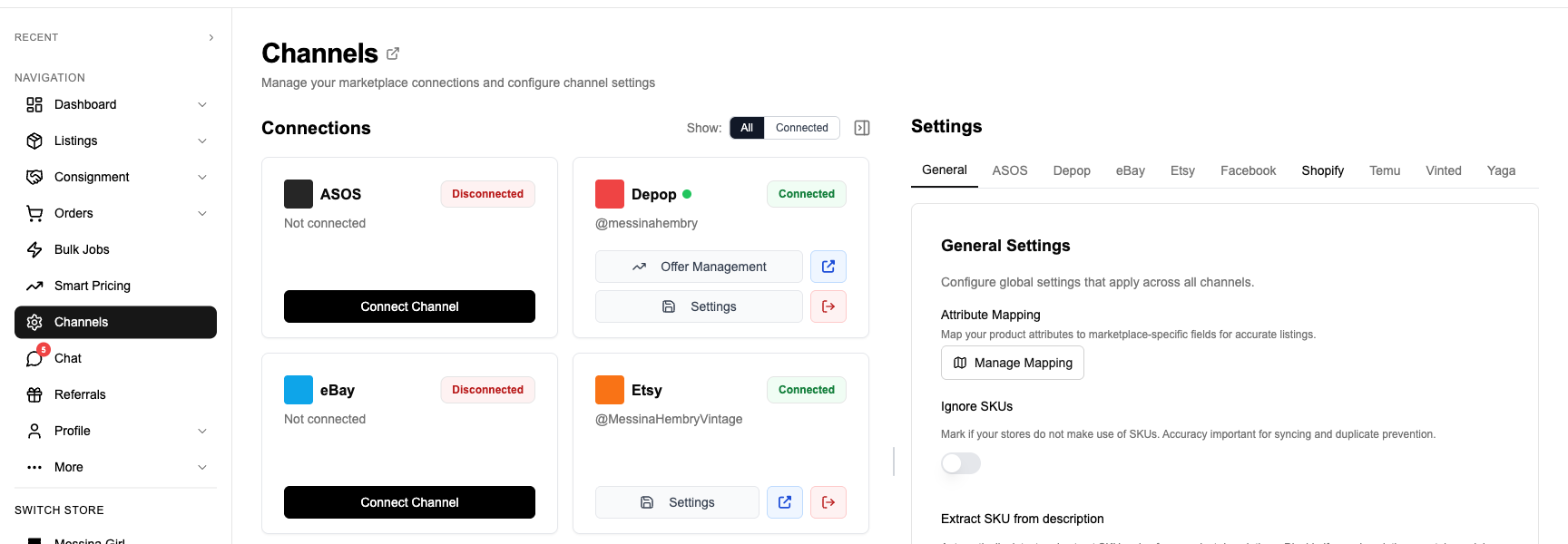
Open Instagram in FLUF Connect, connect the account you want to post from, and choose your photos. The composer is available on the web and in the mobile app. If you manage several Instagram accounts, choose the account for each post.
Build a carousel that answers a buyer’s questions
A product carousel can show the details a single photograph misses. Choose up to ten images from your FLUF inventory, add your own photographs if needed, and arrange a sequence that makes sense without the original marketplace listing beside it.
- Lead with the product. Make the first photo clear enough to recognise at a glance.
- Show useful detail. Add another angle, texture, scale or a close-up of workmanship.
- Show condition honestly. Include relevant wear or flaws for second-hand goods.
- Finish with a clear next step. Tell people where to find the product and check that destination is still current.
For a group of items, use one theme: new ceramics, a collection of cameras or a vintage denim drop. This gives the post a purpose beyond reproducing a list of stock.
Turn your product photos into your next Instagram post.
Write a caption that connects the photo to the purchase
Name the product, explain the detail that matters and tell the reader where to buy. Add dimensions, condition or delivery information when it helps, but only if you have checked it. A photograph alone cannot confirm those facts.
FLUF’s AI caption tool can give you a first draft. Choose a tone, add instructions and review the result. For example, ask for a short introduction to a handmade mug collection that directs readers to your shop. Keep the caption specific to the images rather than filling it with generic sales language.
Schedule individual posts around your stock
Prepare a post, choose a date and time, and let FLUF publish it when scheduled. You can batch the preparation of several posts while keeping control of each one’s images, caption and timing. The activity log shows what is scheduled or published; you can cancel a pending post there.
Scheduling does not mean every new listing is posted automatically. It also does not check whether a featured item is still available and rewrite the post. If an item sells before publication, cancel the pending post. If it sells afterwards, edit or remove the published post in Instagram when appropriate.
For the complete feature walkthrough, see the Instagram post scheduler.
Choose the workflow for your selling channel
The post-making steps are similar, but the buying destination matters. Use the guide for your channel to plan the route from an Instagram photo to the place your customer can order.
- Promote Depop listings on Instagram
- Promote Vinted listings on Instagram
- Promote Etsy products on Instagram
- Promote Shopify products on Instagram
- Promote eBay listings on Instagram
Check whether posts lead to useful visits
Look at the information available in Instagram and in the shop you link to. Profile visits and shop visits answer a different question from likes: did anyone take the next step? Compare posts about individual items with posts about collections, then keep the format that produces useful enquiries or visits for your business.
Do not assume a post caused a sale just because the dates match. If your store supports tracked links, use them consistently. Check the figures in that store’s reporting; FLUF’s Instagram activity log records publication, not sales attribution.
What does Instagram posting cost with FLUF?
Instagram posting and scheduling are included on every paid FLUF Connect plan, including Starter. Pro and Super Seller add tools such as Xero and QuickBooks integrations; those are not required to post to Instagram.
7 days for £1, then from £9/month| Plan | Monthly | Yearly | You save | Crosslisted products |
|---|---|---|---|---|
| Starter | £9/month | £59/year | 45% | Unlimited |
| Pro | £29/month | £199/year | 42% | Unlimited |
| Super Seller | Custom pricing — tell us what you need | Unlimited | ||
Automatic relisting, offer management, smart pricing and listing boosts are included from Pro upwards. Starter covers unlimited crosslisting, inventory sync, order sync and Instagram posting without them. Accounting integrations are included from Pro upwards. Yearly billing is charged once a year. New accounts get 7 days for £1, then move onto a plan.
Save 42% when you pay yearly
Compare the complete inclusions on the pricing page.
Sources and next steps
- Meta: professional accounts and Instagram connection requirements
- FLUF Instagram posting and scheduling
- Current FLUF Connect plans
Subscribe to the seller news brief
The marketplace news that changes how you list, in one short email.
- Fee, policy and algorithm changes across 60+ marketplaces
- Only the topics you pick — the marketplaces you actually sell on
- Short enough to read in a minute. Daily or weekly, unsubscribe in one click
No spam. We never share your address.
Pick your topics first ›Frequently Asked Questions
Every paid FLUF Connect plan includes Instagram posting and scheduling, including Starter. See the pricing comparison for current monthly and yearly options.
No. You need an Instagram Business or Creator account, but a linked Facebook Page is not required for the FLUF Instagram connection.
No. You choose the photos and caption for each post, then publish immediately or choose a scheduled date and time.
FLUF does not edit or delete its Instagram post. Cancel a pending post in the activity log, or edit a published post in Instagram if it is no longer appropriate.
No. FLUF publishes photo posts and carousels. Instagram Shops, product tags and commerce setup are separate; FLUF does not create them or take payment from these posts.
Direct them to the marketplace listing, shop or product page where they can order. Keep the destination current as your stock changes.
Turn your product photos into your next post
Photo posts, carousels and scheduling on every paid plan. Available on web and mobile.