 FLUF Connect
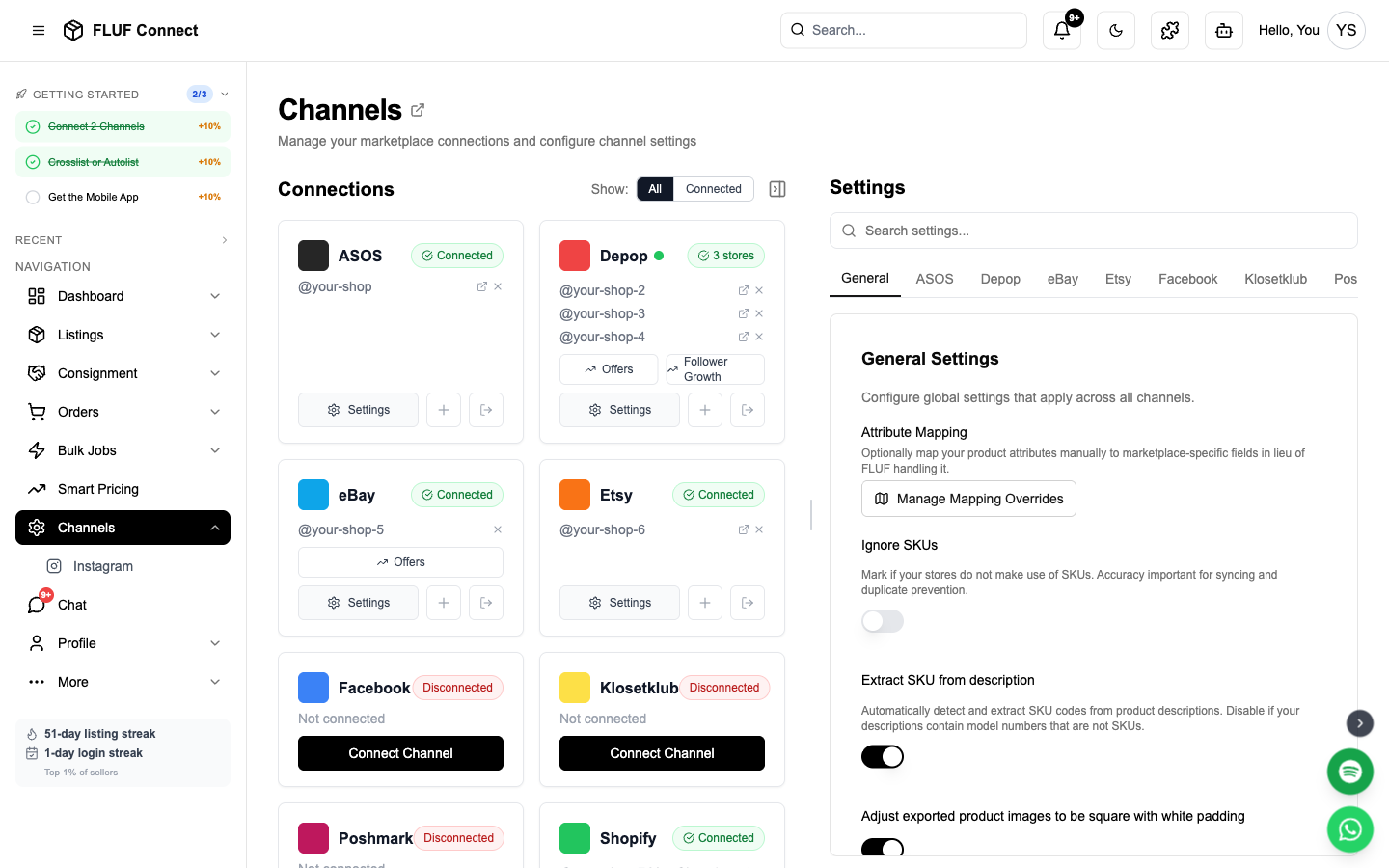
Connecting Depop to FLUF Connect
Connect Depop with the Chrome extension, a copied magic link, or a forwarded login email. Choose the method below that fits your device.
Prerequisites
- Active Depop account with verified email
- At least one listing on Depop (recommended)
- For Method 1: Google Chrome browser + FLUF Utility Chrome Extension
- For Method 2: 2FA must be disabled on Depop mobile app
Method 1: Chrome Extension (Recommended)
This is the fastest and most reliable way to connect Depop.
Step 1: Install FLUF Utility Chrome Extension
- Visit the Chrome Web Store
- Search for "FLUF Utility" or use the install link provided in the connection modal
- Click Add to Chrome
- The extension icon will appear in your Chrome toolbar
Step 2: Log Into Depop
- Open a new Chrome tab
- Go to depop.com
- Log in to your Depop account
- Keep this tab open in the background
Step 3: Connect in FLUF
- Navigate to Connect → Channels
- Click Add Channel and select Depop
- Select Chrome Extension Method
- Click Connect with Chrome Extension
- FLUF will automatically detect your Depop session
- Connection completes in seconds!
Security: Your Depop password is never stored in FLUF. The Chrome Extension securely handles authentication.
Method 2: Magic Link (Alternative)
If you can't use Chrome Extension, use Depop's Magic Link authentication. This method also works on the FLUF mobile app — watch the mobile how-to video.
Step 1: Request Magic Link
- Navigate to Connect → Channels
- Click Add Channel and select Depop
- Select Magic Link Method
- Enter your Depop email address
- Click Send Magic Link
Step 2: Get Magic Link from Email
- Check your email for "Log In To Depop" from Depop
- DO NOT CLICK THE LINK — this will log you into Depop's website instead
- Right-click the "Log in to Depop" button in the email
- Select Copy Link Address (Chrome) or Copy Link (Firefox/Safari)
- The link will be a long URL — copy the entire thing
Step 3: Paste Magic Link in FLUF
- Return to the FLUF Connect window
- Paste the full magic link URL into the input field
- Click Connect
- FLUF will authenticate using the magic link
Critical: Two-Factor Authentication must be disabled on your Depop account for Magic Link to work. With 2FA on, the magic link won't arrive and the connect screen will hang on "Loading Depop…".
Method 3: Forward the Email (easiest — nothing to copy)
Depop's login links only work once, and they die the moment anything opens them — you tapping the button to check it, your mail app previewing the link, or your employer's email security scanning it. When that happens, Depop tells us "Your login link is invalid or has expired", even though the email only arrived seconds ago. That is the single most common reason a Depop connection fails.
Forwarding sidesteps it completely: you never open the link, and we take it straight out of the email.
Steps
- In FLUF (app or desktop), enter your Depop email and tap Request Magic Link.
- When the Depop email arrives, don't tap the link — hit Forward.
- Forward the whole email, unedited, to:
[email protected]- That's it. Within a few seconds FLUF pulls the link out, connects your Depop account, and the screen updates on its own.
Forward, don't copy-paste into a new email. Pasting the link into a fresh message strips the parts we use to recognise it. Use your mail app's Forward button so the original email comes through intact.
Different email for Depop than for FLUF? That's fine — just forward from the mailbox the Depop email landed in, and we'll connect the account you requested the link from.
Nothing happened? Request a fresh link and forward that one. Each new request cancels the previous link at Depop's end, so only the newest email will work — the same rule that applies to copy-paste.
Sync Behavior
- What syncs: New listings, sold items, price changes, inventory updates
- Sync speed: Updates are synced periodically throughout the day
Re-authentication
Depop sessions can expire. You'll need to reconnect if:
- You change your Depop password
- FLUF asks you to reconnect
- You log out of Depop manually
How to reconnect:
- Go to Channels
- Click the Reconnect button on your Depop card
- Follow the same connection method you used initially
Running two Depop stores? Each store shows its own status dot on the Channels page, so you can see exactly which one needs reconnecting. Reconnect refreshes whichever store you're currently logged into on Depop — so to fix a specific store, log into that Depop account in your browser first, then click Reconnect.
Channel Settings
Once connected, you can configure Depop-specific settings in Channels → Depop → Settings.
Relisting & Visibility
| Setting | Description |
|---|---|
| Activate relisting | Auto-relist products by age to keep them fresh. Boosts visibility in the Depop feed. |
| Boost all products | Automatically boost all products when listed on Depop. Increases visibility but costs Depop credits. |
Shipping
| Setting | Description |
|---|---|
| Domestic shipping price | Default domestic shipping cost for new listings |
| International shipping price | Default international shipping cost |
| Shipping method | Choose between Depop Shipping (via Evri) or Other. US sellers see size-based options. |
| Parcel size | When using Depop Shipping (Evri): Small (under 1kg), Medium (under 2kg), or Large (under 5kg). Defaults to Small. |
Offer Management
| Setting | Description |
|---|---|
| Automatic offer management % | Set to 100% to disable. Otherwise, offers at or above this % are auto-accepted, counter offers sent below, and offers sent to likers. Example: 80% = accept £8+ on a £10 item. |
| Offers to likers delay | How many hours to wait before sending offers to likers |
Messaging
| Setting | Description |
|---|---|
| Post-purchase message | Message sent to buyers automatically after an order is detected. Leave blank to disable. |
| Refund message | Message sent when processing refunds through Shopify order management |
Order Alerts
| Setting | Description |
|---|---|
| Overdue dispatch threshold | Get alerts when Depop orders are unshipped after X days. Set to 0 to disable. |
Troubleshooting
Listings failing with "manual shipping is not allowed"?
- Depop requires Depop Shipping on your account, and it needs a ship-from address saved on Depop
- Open the Depop app → Profile → Settings → Shipping, add your ship-from address and make sure Depop Shipping is on
- Back in FLUF, set Shipping method to Depop Shipping in your Depop channel settings
- Then try listing again — no need to change anything on the item itself
Chrome Extension not detecting Depop session?
- Make sure you're logged into depop.com in Chrome
- Refresh the Depop tab and try again
- Check that the FLUF Utility extension is enabled
- Try logging out of Depop and back in
Magic Link not working?
- Verify you copied the entire link URL from the email
- Make sure 2FA is disabled on Depop mobile app
- Request a fresh magic link if it's been more than 15 minutes
- Check spam folder for Depop email
Connection keeps expiring?
- Depop sessions have limited lifespans
- Use Chrome Extension method for longer session duration
- Re-authenticate when prompted
Not seeing all Depop listings?
- Import can take 2-5 minutes for large inventories
- Check Channels page for import progress
- Only active Depop listings are imported (sold items excluded)
Next step
Crosslist your first listing, then check how inventory sync works.