 FLUF Connect
Connecting Facebook Marketplace to FLUF Connect
Facebook Marketplace is one of the largest local and shipped selling platforms, with billions of potential buyers. Connect your account using the FLUF Utility Chrome Extension.
Prerequisites
- Active Facebook account with Marketplace access
- Google Chrome browser
- FLUF Utility Chrome Extension (installed during connection)
- Your Facebook account must be in good standing
Connection Steps
Step 1: Install FLUF Utility Chrome Extension
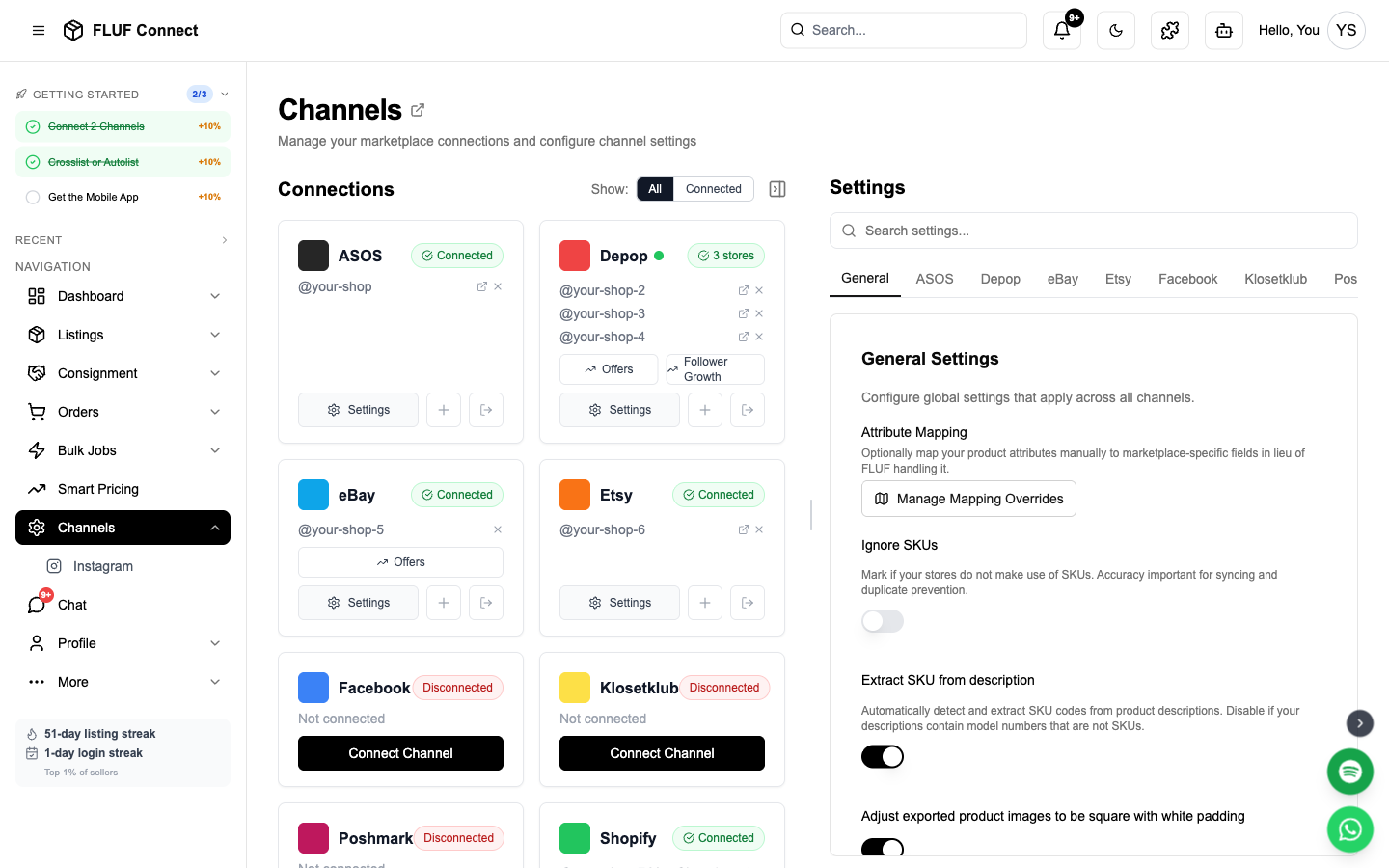
- Navigate to Connect → Channels
- Click Add Channel and select Facebook Marketplace
- If prompted, click Install Extension to visit the Chrome Web Store
- Click Add to Chrome and confirm the installation
- Return to the FLUF Connect window
Step 2: Log Into Facebook
- Open a new Chrome tab
- Go to facebook.com
- Log in to your Facebook account
- Keep this tab open in the background
Step 3: Connect in FLUF
- Return to the FLUF Connect connection modal
- FLUF will automatically detect the extension
- Click Connect to Facebook
- The extension will securely authenticate your Facebook session
- Once connected, your Facebook Marketplace channel card appears on the Channels page
Security: Your Facebook password is never stored in FLUF. The Chrome Extension securely handles authentication.
Sync Behavior
- What syncs: Listings, inventory updates, orders
- Listing speed: Listings are created in seconds via your Chrome Extension
Using FLUF on your phone
You don't need a computer. If you connect Facebook in the FLUF app, the app lists, edits and marks items sold on Facebook for you. Whenever you open the app it also:
- Imports your existing Facebook listings into FLUF (once a day), so you can crosslist them and FLUF can take them down when they sell elsewhere
- Checks for Facebook sales (every 30 minutes while the app is open) and removes the sold item from your other channels
Your phone only does this while the FLUF app is open, so open it now and then, especially after a Facebook sale. If the Chrome Extension is also running on a computer, the extension does this instead.
Facebook settings worth turning on
Find both under Channels → Facebook.
Postage on Facebook listings. Switch on Offer postage so your listings go out with shipping as well as local pickup. Facebook works out the postage from the item's weight using its own shipping labels.
Cross-post to Facebook Groups. Each new Marketplace listing can also be posted to up to 20 of your buy-and-sell groups, under your own profile. Switch on Cross-post to Facebook Groups, tick the groups you want and press Save groups. Only groups that allow selling, in your listing's currency, are shown. Your group list is loaded by the FLUF Chrome extension when Facebook connects or refreshes. If it says no groups are loaded yet, open Facebook in Chrome with the extension running and press Reconnect on your Facebook card.
A Facebook business Page can't list on Marketplace; Marketplace listings always come from a personal profile. Posting to groups is how to reach more buyers from that profile.
Re-authentication
Facebook sessions may expire periodically. You'll need to reconnect if:
- Your session expires
- You change your Facebook password
- You log out of Facebook manually
How will I know? If your session expires and you have items for sale on Facebook Marketplace, you'll see an amber banner on the Channels page, and we'll email you so you can fix it even if you're not logged into FLUF.
How to reconnect:
- Open facebook.com/marketplace/you/selling in the same Chrome browser where you have the FLUF extension installed
- Log into Facebook if prompted
- Go to Channels and click Reconnect on your Facebook Marketplace card (or just leave it — FLUF will pick it up automatically within 30 minutes)
Once you're back in, FLUF resumes syncing your sold items automatically — no extra clicks needed.
Troubleshooting
Chrome Extension not detected?
- Ensure you're using Google Chrome (not Firefox, Safari, or Edge)
- Check that the FLUF Utility extension is installed and enabled
- Try refreshing the FLUF Connect page
- If recently installed, you may need to refresh the page for detection
Connection failed?
- Make sure you're logged into Facebook in Chrome
- Verify your Facebook account has Marketplace access
- Try logging out of Facebook and back in
- Disable other browser extensions that may interfere
- Try in a new Chrome window
"Already connected to another account" error?
- Each Facebook account can only be connected to one FLUF account
- If you previously connected this Facebook account to a different FLUF account, disconnect it there first
- Contact support if you need help resolving this
Listings not appearing on Facebook Marketplace?
- Listings usually appear within seconds — check your Facebook Marketplace page
- Check Channels for sync status
- Facebook may review new listings before making them visible
- Ensure your products comply with Facebook Marketplace Commerce Policies
Session keeps expiring?
- Keep your Facebook tab open and active in Chrome
- Re-authenticate when prompted
- Consider pinning the Facebook tab in Chrome
Best Practices
- Comply with Facebook policies: Ensure all listings follow Facebook Marketplace Commerce Policies
- Use high-quality photos: Clear, well-lit images perform best on Facebook
- Write clear descriptions: Include key details like brand, condition, and dimensions
- Respond to messages promptly: Facebook rewards active sellers
- Price competitively: Facebook buyers often compare local and shipped options
Next step
Crosslist your first listing, then check how inventory sync works.